What would you like to convert?
| Your starting point | Method | Apple Pencil needed? |
|---|---|---|
| Writing into a text field now | Scribble | Yes |
| Handwriting already in Notes | Copy as Text | No, for selecting existing writing |
| Paper notes or an app screenshot | Image OCR in Safari | No |
Use Scribble for new Apple Pencil writing
Scribble is for writing into a text field now. It does not transcribe an old paper notebook or a photo in your library.
- Use a compatible Apple Pencil and enable Scribble in Settings > Apple Pencil.
- Tap a text field and write with Apple Pencil. In Notes, you can also select the Scribble tool in the handwriting toolbar.
- Check the typed words and correct them before continuing. Availability depends on your device and supported language.
Use Copy as Text for existing Apple Notes handwriting
These steps apply to handwriting created in Notes. For a photograph attached to a note, use the image workflow below. If transcription is unavailable, check Apple's supported system languages.
- Open the handwritten note in Apple Notes. Select the handwriting with the Lasso tool or touch and hold to extend a selection.
- Open the selection menu, including More if needed, and choose Copy as Text.
- Paste into a text field in Notes, Pages, or another editor. Review the transcription before replacing the original.
Convert paper notes without Apple Pencil
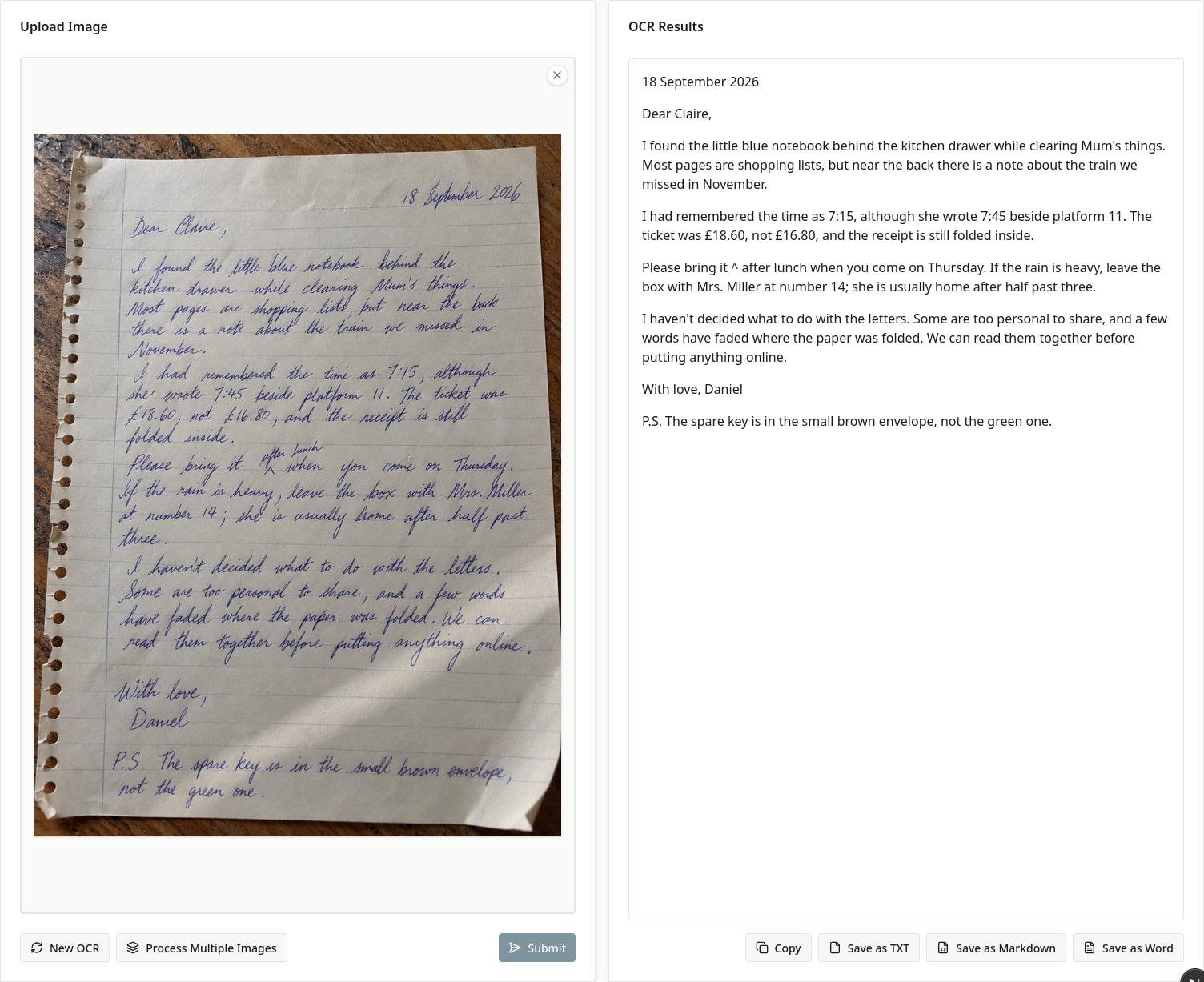
For a paper notebook, the camera is your input. An Apple Pencil is unnecessary because the OCR tool reads the uploaded image rather than pen strokes.
- Take a photo with the Camera app. Hold the iPad parallel to the page and light the writing evenly.
- Open the photo and crop it to the handwritten section. If a scan was saved as a PDF, capture the relevant page as an image for the web image uploader.
- Open the FreeOCR.AI homepage in Safari and follow the browser workflow below. Use an image from your photo library or Files.
- For several pages, process one readable image at a time and combine the reviewed text in page order.
- For handwriting in a different note app, capture a screenshot of a readable section and use the same workflow.
- Avoid shrinking a long page to fit one screenshot: small letters lose detail. Separate sections are easier to review.
- If you need a Word document, download DOCX from the result rather than trying to preserve the original handwriting as editable ink.
Finish the photo workflow in Safari
Use the homepage image tool for a printed document, a paper note, or an app screenshot. The source can contain printed text, handwriting, or both. Save it as an image, not a notebook file or PDF. Make sure the full paragraph is visible and readable before opening Safari.
- Open the FreeOCR.AI homepage in Safari. Select your cropped image from Photos or Files. Use a photo or screenshot, rather than a PDF or notebook file.
- Complete any verification shown, then submit for recognition. Follow the on-page account or credit prompt if you have used today’s free allowance.
- Compare the result with the source photo, including numbers and words near the page edges. Copy the result and paste into a text field in Notes, Pages, Word, or Google Docs; correct mistakes there.
- For a separate document, save as Word, TXT, or Markdown. Save the download to Files and open it in an appropriate editor. If clipboard access fails, use the TXT download.
Frequently asked questions
Do I need Apple Pencil to convert paper handwriting?
No. Take a photo of the page and upload the image to FreeOCR.AI in your browser. Apple Pencil is used for the Scribble method, not the photo OCR method.
Why is Copy as Text missing in Apple Notes?
Check that you selected native handwriting rather than an attached photograph. Open the full selection menu and check supported language settings. For a photo, use image OCR instead.
Can I upload a scanned PDF to the free web image tool?
No. This browser workflow accepts images. Open the PDF page and capture a readable screenshot for OCR. Do not rename a PDF to an image extension; that does not convert its contents.
Official references
Documentation consulted on October 9, 2026. Controls can vary by version, device, and language.