How do I convert a PDF to a text file?
Download FreeOCR Desktop, select one or more PDFs, choose Text as the output format, and start OCR. Desktop saves one .txt file for each source PDF.
PDF OCR
Turn scanned, image-only and native PDFs into clean TXT files with AI OCR. Select multiple documents or a folder, process every page, and save one text file per PDF.
PDF conversion runs in FreeOCR Desktop, not in the browser, and uses 1 credit per page. Sign in with the same account and use permanent or subscription credits; no subscription is required.
PDF TYPES
FreeOCR reads the visible content on every page, whether the original PDF contains selectable text or only scanned images.
PLAIN TEXT
TXT removes visual formatting on purpose, giving you lightweight text that is easy to open, copy, search and reuse.
WORKFLOW
Use the desktop app for complete PDF documents and repeatable batch jobs.
Select PDF files or a folder
Choose Text as the output
Run OCR and save the .txt files
PRODUCT PROOF
Follow a real batch from selecting PDFs to saving one TXT file per document.
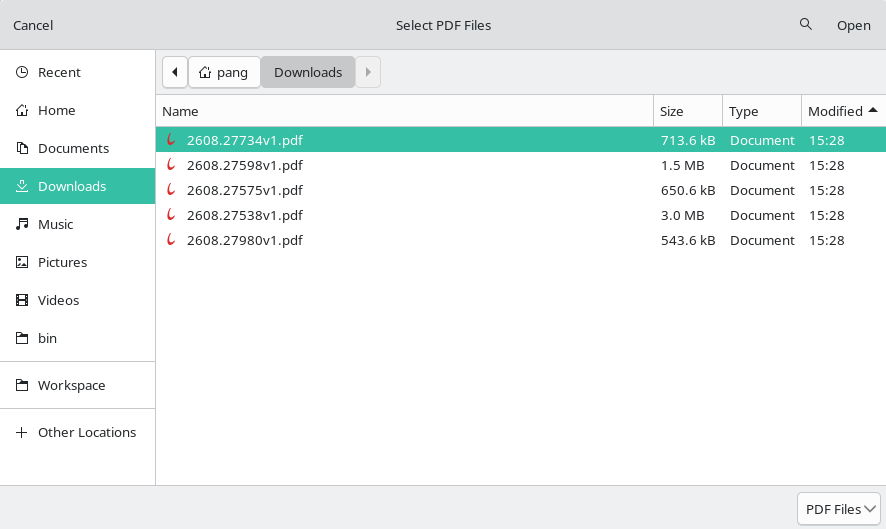
Select several PDFs directly or add every PDF from a folder in one step.
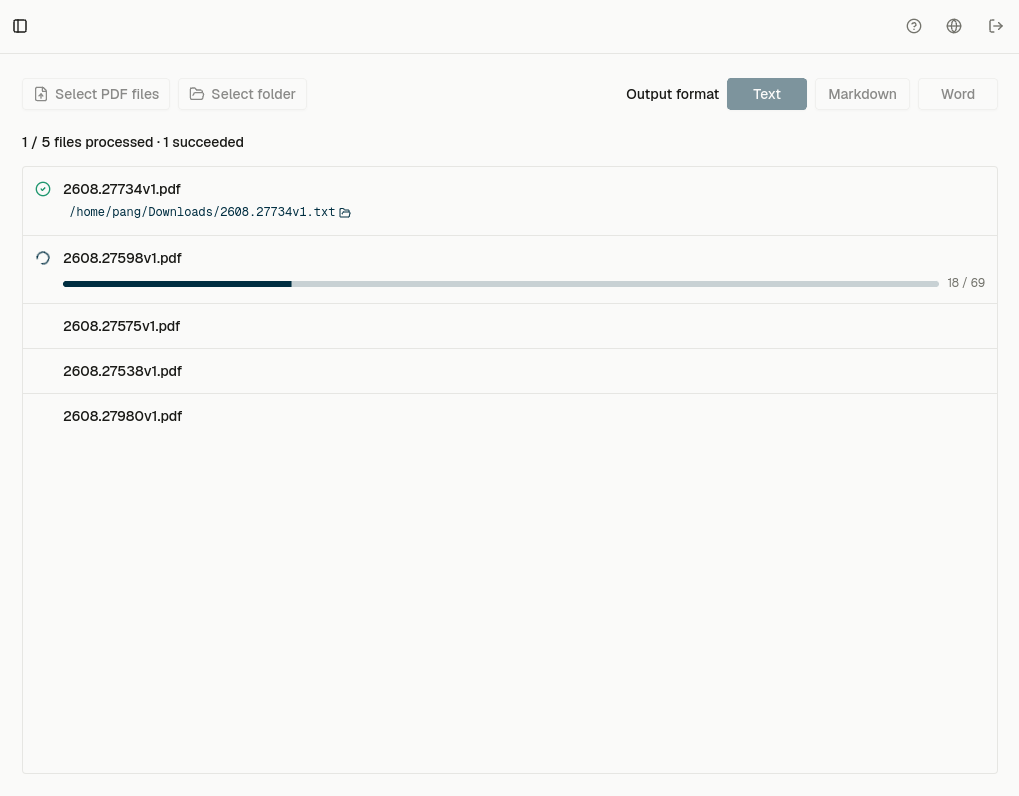
Desktop processes every page in order while showing file and page progress.
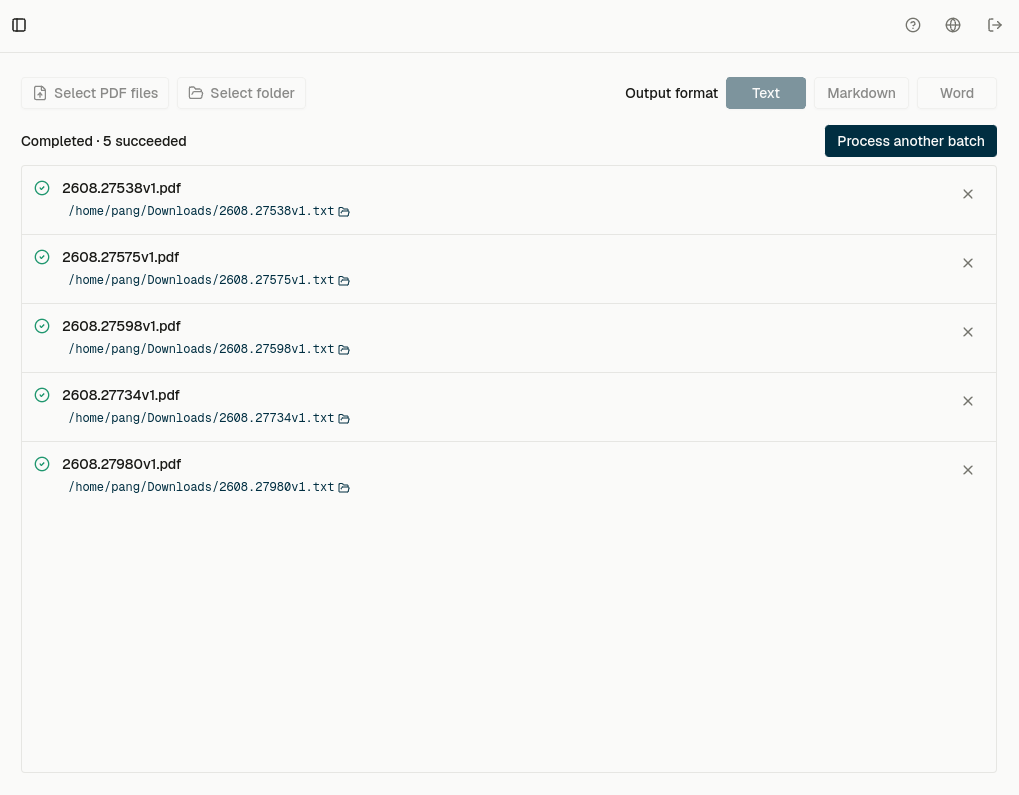
Each source document gets its own .txt output, so filenames and document boundaries stay clear.
EXAMPLE
Use the same PDF page on both sides so readers can verify what TXT keeps and what it removes.
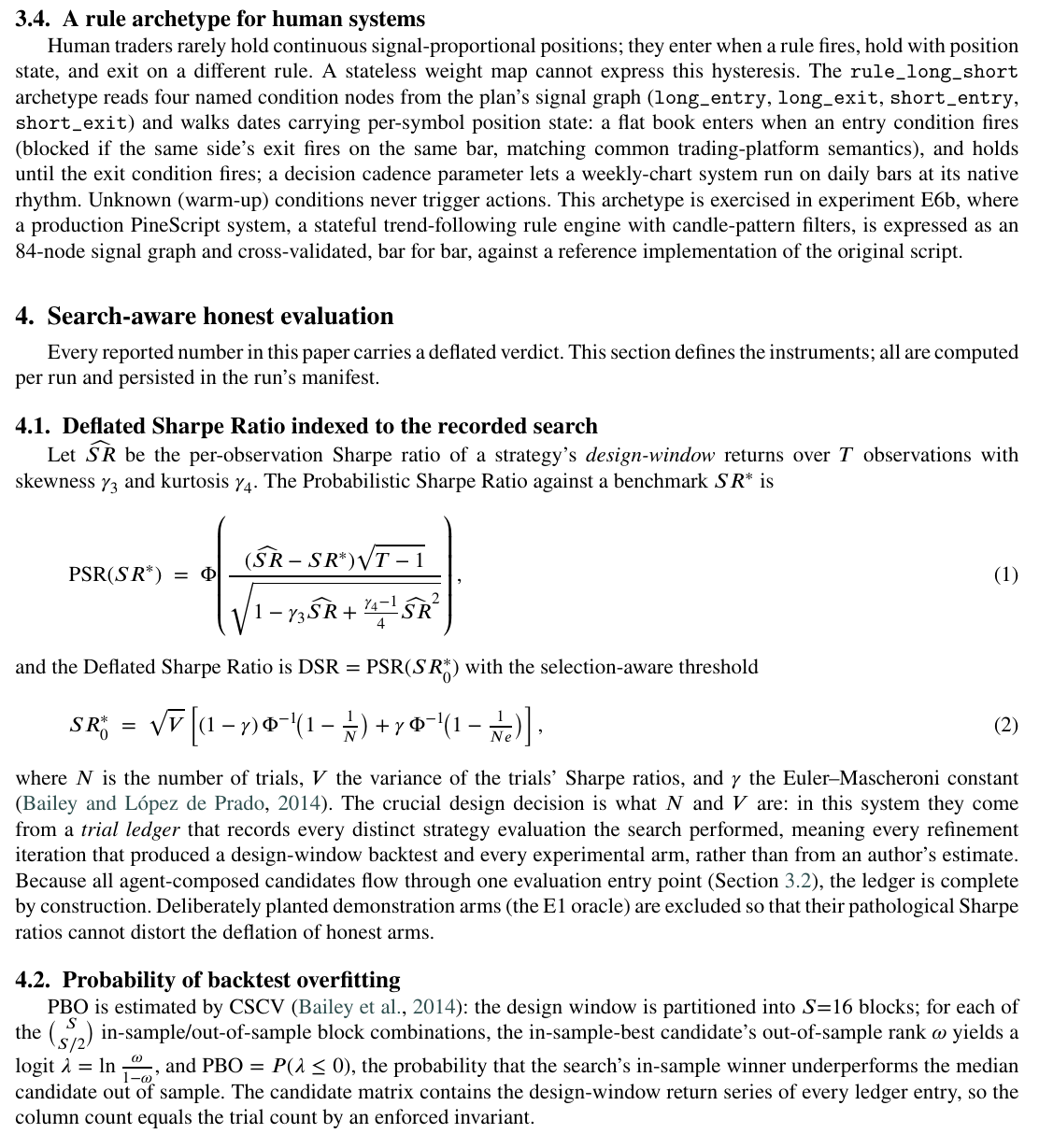
AI OCR recognizes text in scans that ordinary copy, search and text extraction tools cannot read.
Headings and paragraphs become readable text blocks without fonts, columns or page styling.
BATCH
Instead of uploading and downloading documents one by one, prepare the batch once and let Desktop work through it.
USES
Choose TXT when the content matters more than preserving the original design.
LIMITS
TXT is deliberately simple. Choose Markdown or Word if you need richer document structure.
RELATED
Use the same Desktop PDF workflow and choose an output format that matches the next step.
FAQ
Download FreeOCR Desktop, select one or more PDFs, choose Text as the output format, and start OCR. Desktop saves one .txt file for each source PDF.
Yes. FreeOCR renders every page and uses AI OCR, so it can read scanned and image-only PDFs that do not contain selectable text.
Plain text keeps the recognized words and basic reading order, but not fonts, images, columns or page layout. Use PDF to Markdown or PDF to Word when structure and formatting matter.
Yes. Select multiple PDF files or a folder. Desktop processes the documents in sequence, handles pages within the active PDF in parallel, and saves a separate text file for each PDF.
Whole-PDF conversion runs in FreeOCR Desktop, not in the browser. The desktop workflow is designed for multi-page PDFs and batches of multiple files.
PDF conversion runs in FreeOCR Desktop, not in the browser, and uses 1 credit per page. Sign in with the same account and use permanent or subscription credits; no subscription is required. Desktop shows the page count and checks your available credits before processing.
Download FreeOCR Desktop, add your PDFs, and export clean .txt files with AI OCR.
1 credit per PDF page · Multiple PDFs and folders supported