01
Sales Report with Multilevel Headers
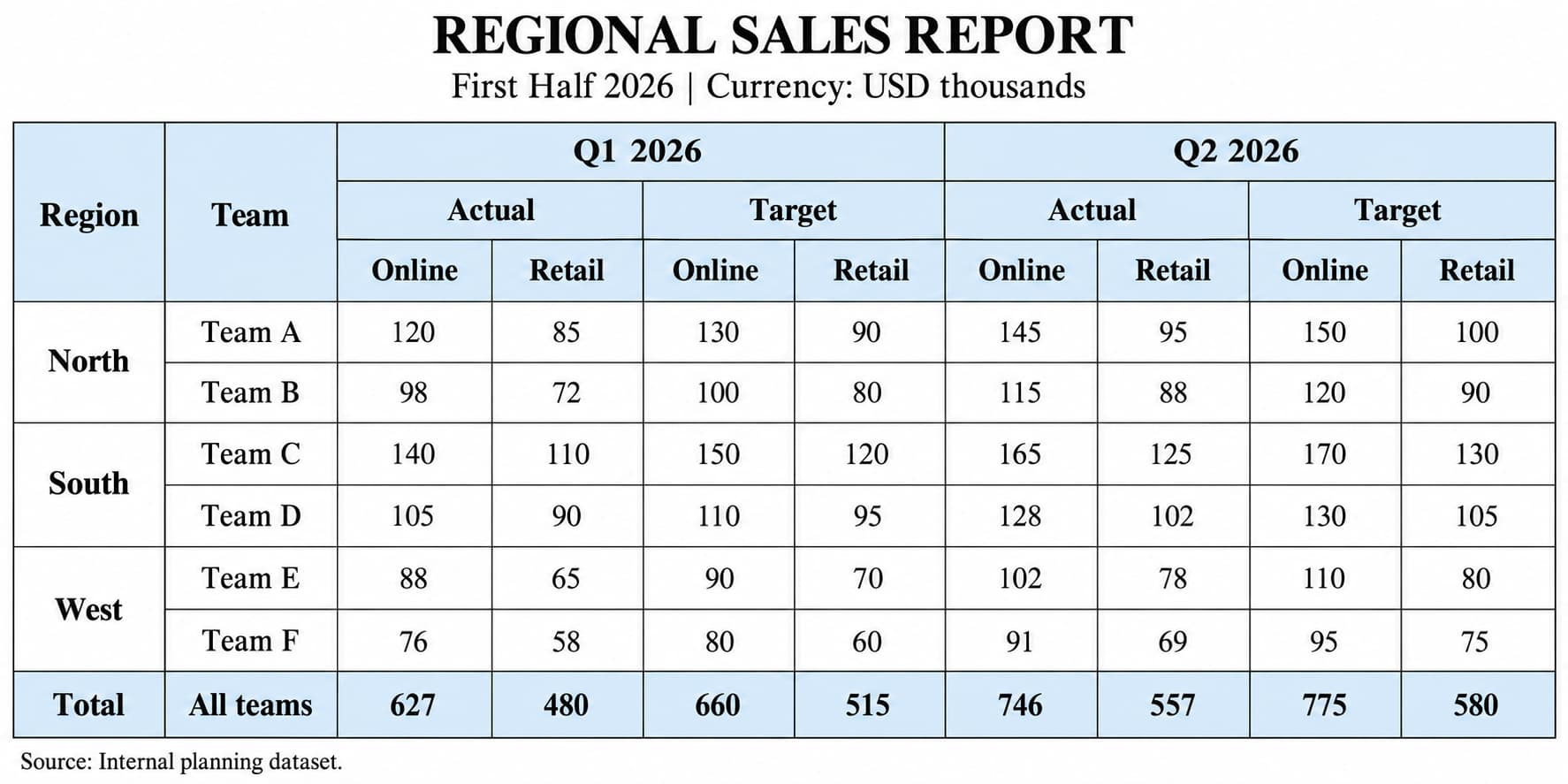
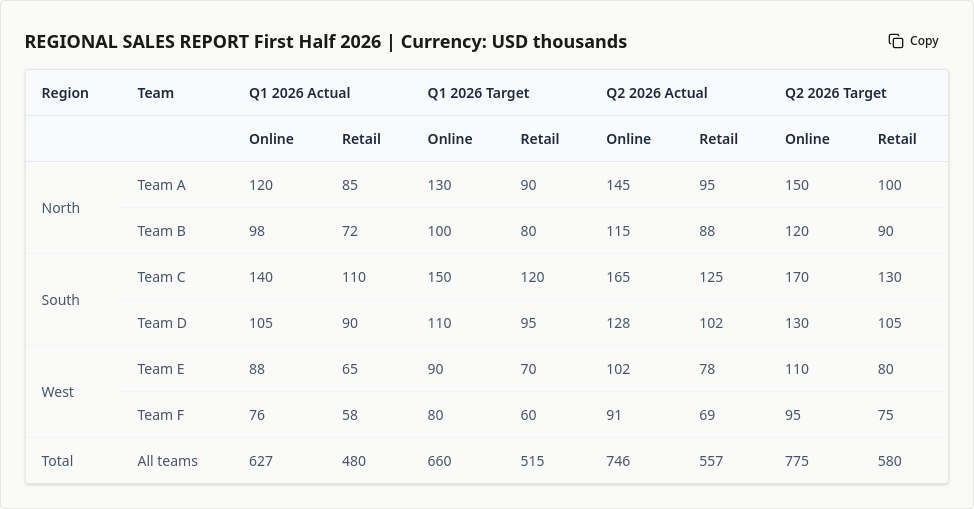
TABLE OCR
Upload one JPG, JPEG, PNG, WebP, BMP, HEIC, or HEIF table image, or paste one from your clipboard. Detect separate tables, rows, columns, and headers, then copy the structured result or export it.
Advertisement. The content below is provided by third parties and is not part of FreeOCR.AI's services.
Extract text from images and scanned documents with the free OCR tool.
Use Image OCR02Define the fields you need and extract structured values from a document image.
Try Data Extraction03Integrate image table extraction into applications and automation workflows.
View API DocumentationPROCESS
Upload one supported table image or paste an image from your clipboard.
Run table extraction to identify rows, columns, headers, and any multiple tables in the image.
Review the structured table, then copy it or export it as XLSX or CSV.
EXAMPLES
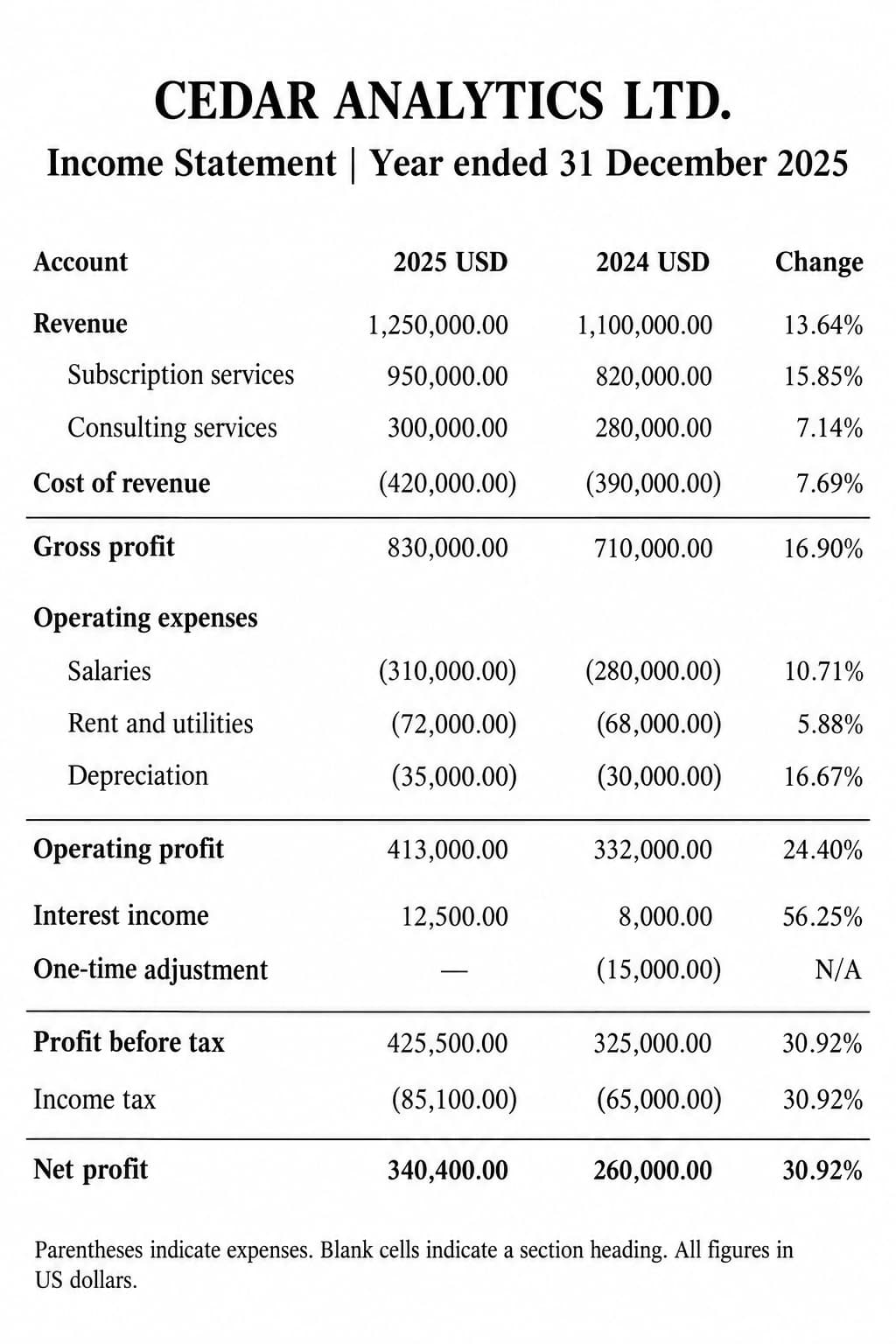
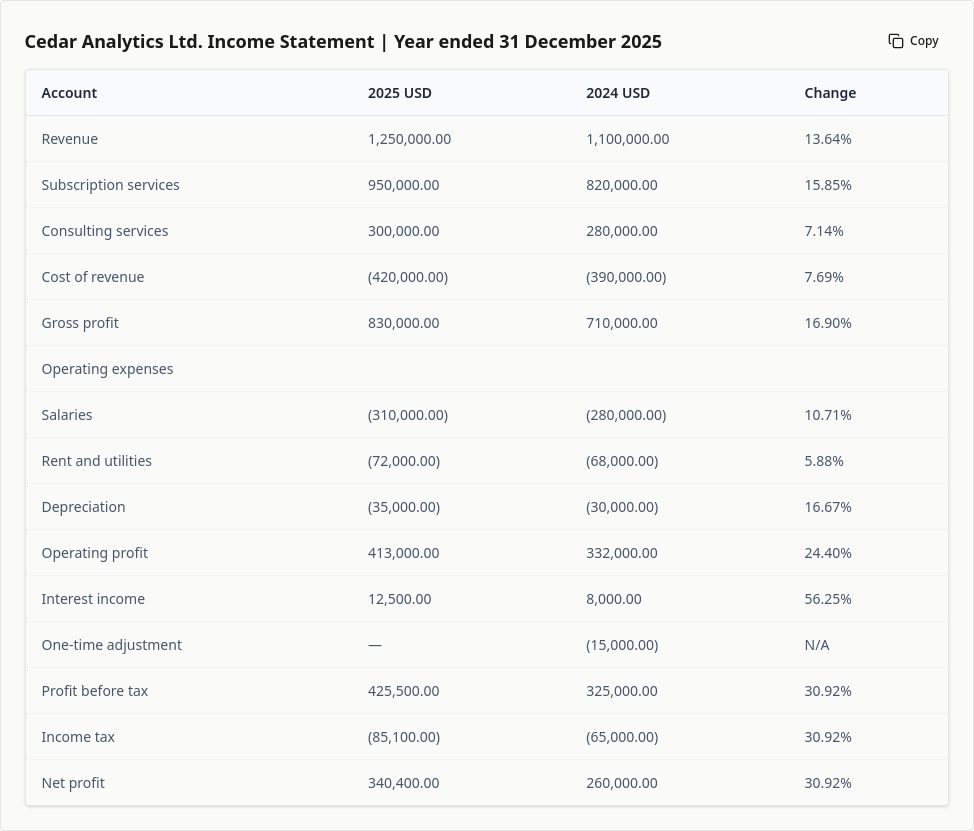
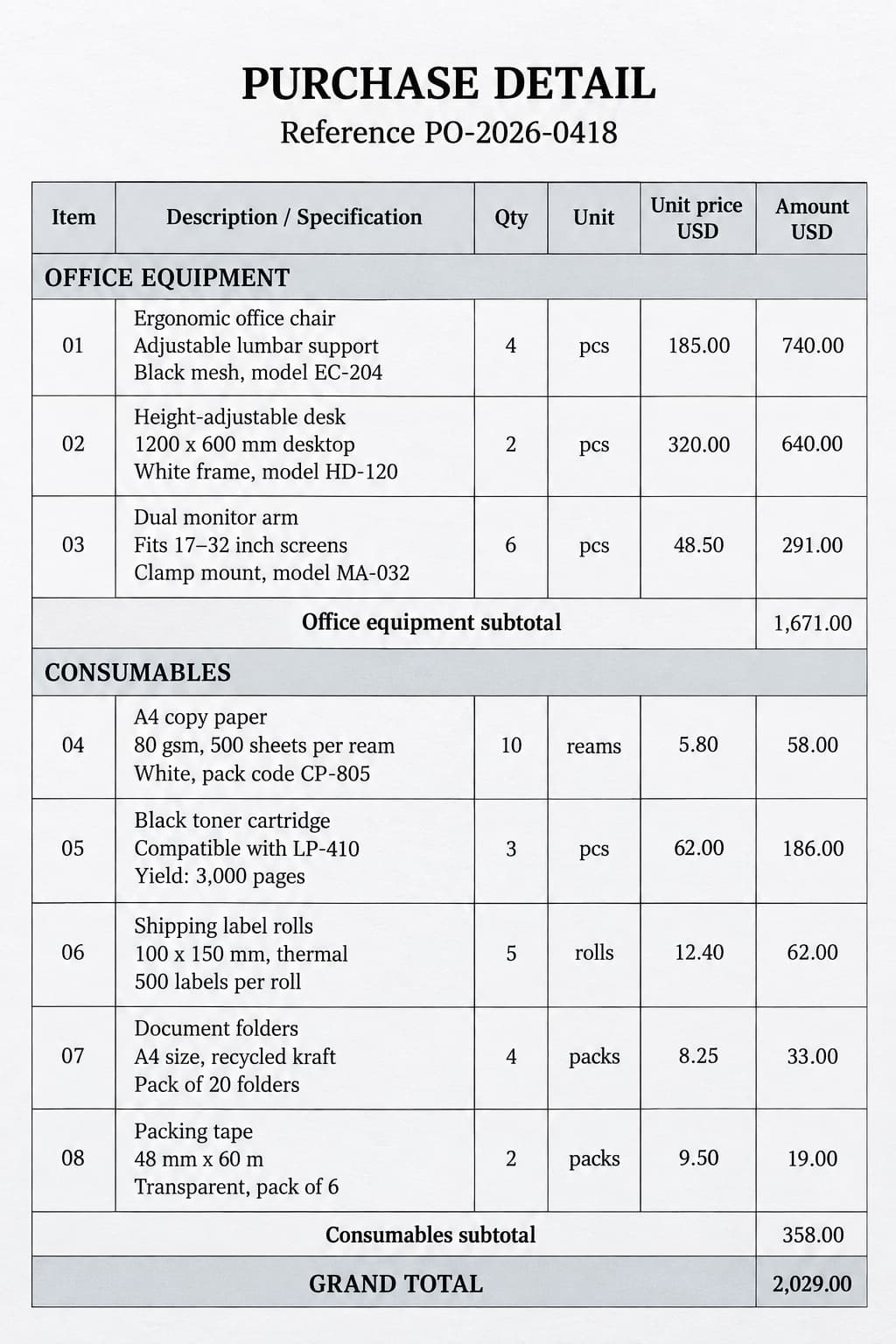
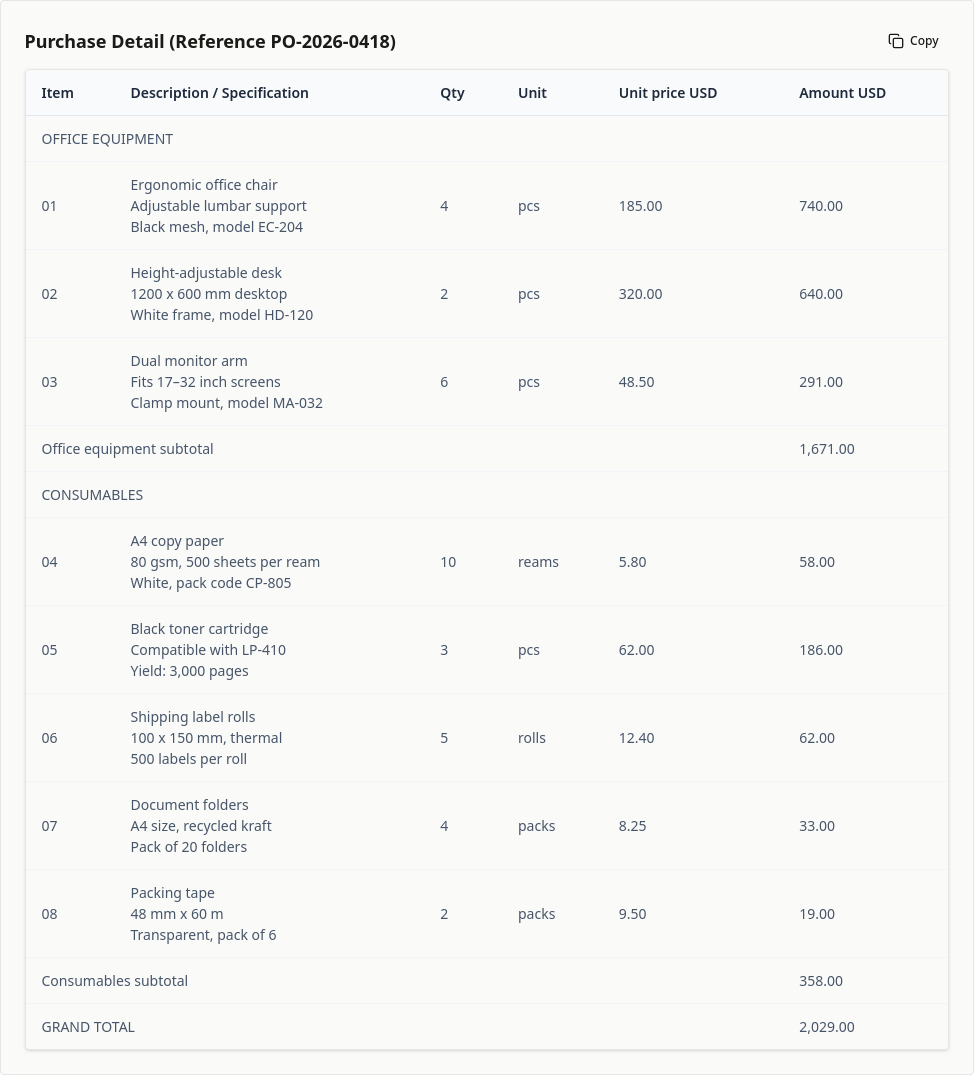
This example shows how table OCR can reconstruct visible cells as rows, columns, and headers.
01
02
03
FEATURES
Extract table content from supported image formats, including scans, phone photos, and screenshots.
Review detected tables as rows and columns, copy a table, or export it as XLSX or CSV when needed.
A single uploaded image can contain multiple tables, which can be detected and reviewed separately.
Designed to recognize merged cells, multi-level headers, dense tables, and irregular row and column layouts, preserving these relationships in structured table output whenever possible.
Extract tables containing English, Chinese, Japanese, Korean, Spanish, French, German, and more than 100 supported languages.
This page does not save images or results to account history, including when you sign in and use credits. The workspace saves history that you can review or delete.
STRUCTURE
Unlike plain-text or Markdown OCR, Table OCR produces structured HTML tables so it can represent rows, columns, headers, merged cells, and other cell relationships before export to XLSX or CSV.
USES
Move line-item tables from invoice images into editable spreadsheets for review.
Extract tabular entries from customs form images for logistics workflows.
Convert tables in tax-record images into spreadsheet data for checking and calculation.
Extract rows and columns from financial report screenshots or scans for analysis.
Turn photographed or scanned research tables into editable spreadsheet data.
Digitize price lists, inventory tables, schedules, and other business data.
WORKFLOWS
Extract and review tables from one web image at a time, then copy or export the result.
Extract a Table02Sign in and use available credits to process multiple images through the bulk route.
Convert Multiple Images in Bulk03Choose permanent credits for occasional use or a subscription for regular use. Both work for single images and batches.
View credit pricing04Upload images through the API and receive table results as JSON, CSV, or XLSX.
Use the Table OCR APIREVIEW
FAQ
Upload one supported table image or paste it from your clipboard, run table extraction, review the detected rows and columns, then copy the table or export it.
Yes. Upload or paste a screenshot that contains a table. Clear, tightly framed screenshots generally produce easier-to-review structured results.
Yes. Table OCR produces structured HTML tables to represent rows, columns, headers, merged cells, and other cell relationships before export.
You can download XLSX or CSV files, or copy the extracted table to your clipboard.
Yes. It is designed to handle merged cells, multi-level headers, dense tables, and irregular layouts. As with any AI extraction, review important values and structure because mistakes are still possible.
Yes. The bulk route requires a login and an action to start processing, and it uses your available credits. The standard web converter handles one image at a time.
Yes. The API accepts image uploads and can return extracted table data as JSON, CSV, or XLSX.
The web converter supports JPG/JPEG, PNG, WebP, BMP, HEIC, and HEIF, plus images pasted from your clipboard.
OCR, table and field extraction share 10 free images per day without signing in. After using them, sign in to continue on the same page with credits. New accounts receive 20 bonus credits. You can buy permanent credits or subscribe; batch processing uses the workspace.
Upload one image, detect its table structure, and copy or export the recognized rows and columns.
Extract a TableDrag & drop an image here, or click to upload
You can also paste an image (Ctrl+V / Cmd+V)
Loading today’s free allowance…