How do I convert a PDF to Markdown?
Download FreeOCR Desktop, select one or more PDF files, choose Markdown as the output format, and start OCR. Desktop saves one .md file for each source PDF.
PDF OCR
Select multiple PDFs or an entire folder. FreeOCR Desktop processes scanned, image-only and multi-page documents, recognizes headings, lists, tables and formulas, and saves one editable .md file per PDF.
PDF conversion runs in FreeOCR Desktop, not in the browser, and uses 1 credit per page. Sign in with the same account and use permanent or subscription credits; no subscription is required.
PDF TYPES
FreeOCR renders each page and reads its visible structure, so it can handle PDFs with or without a selectable text layer.
MARKDOWN
The output keeps useful document structure in a portable format that works with editors, repositories and AI workflows.
WORKFLOW
Use the desktop app for whole PDFs instead of uploading one page at a time in the browser.
Select PDF files or a folder
Choose Markdown as the output
Run OCR and save the .md files
PRODUCT PROOF
A real FreeOCR Desktop run, from selecting PDF files to saving the finished Markdown results.
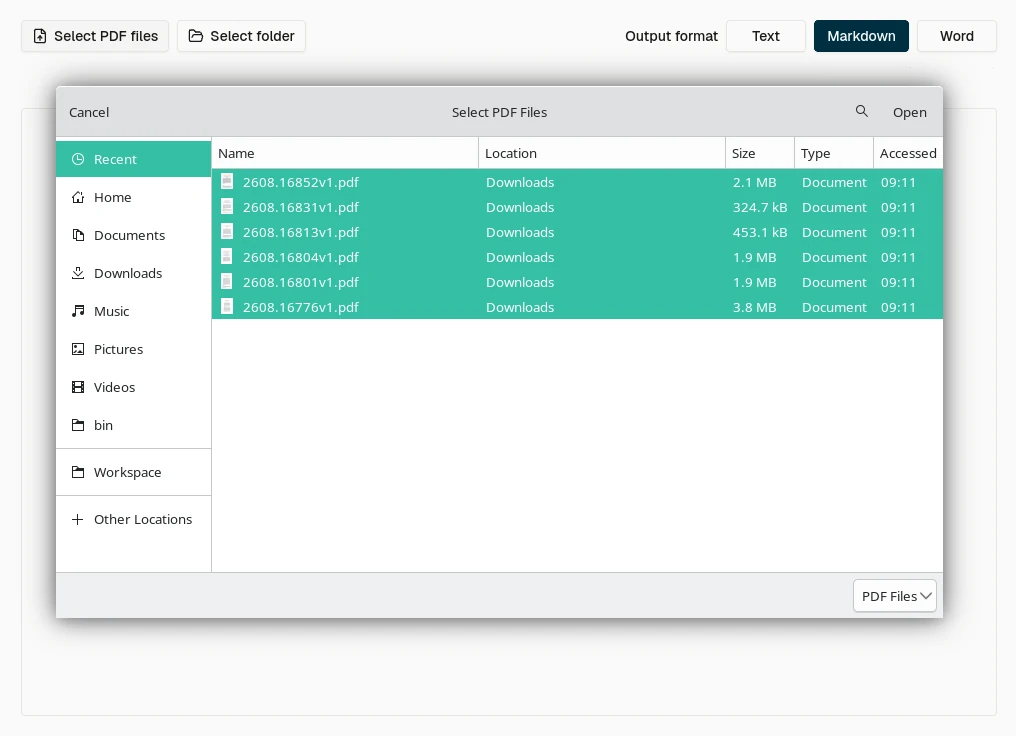
Select multiple PDFs at once or add an entire folder from the PDF OCR screen.
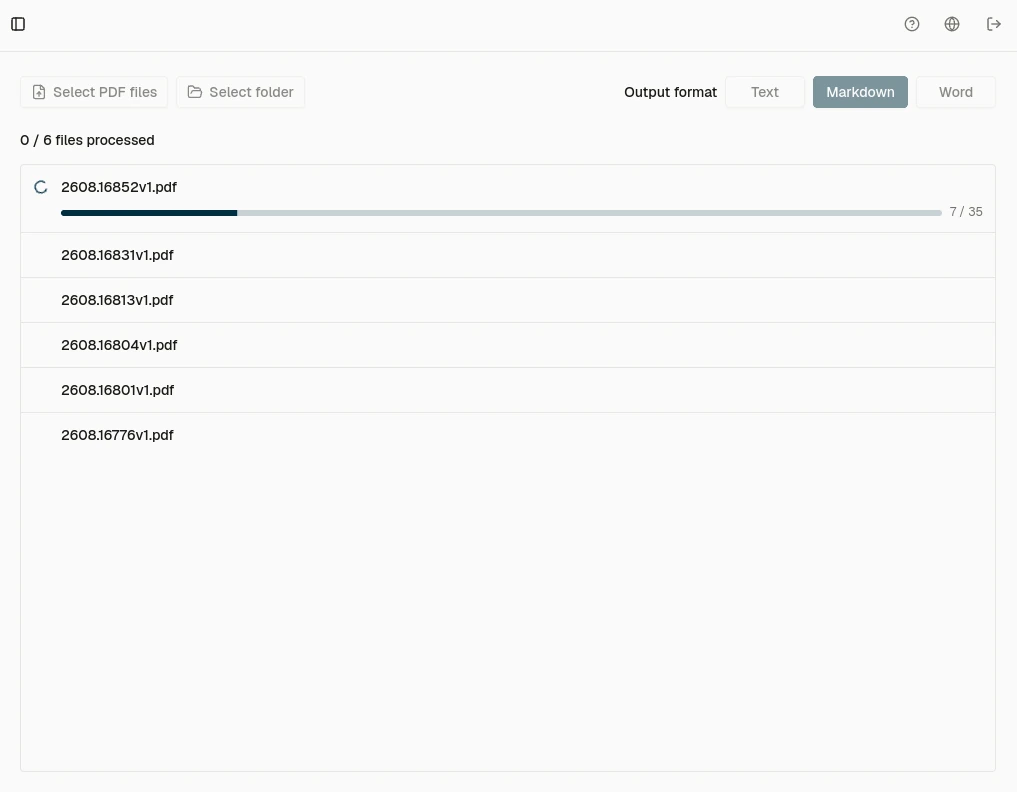
Choose Markdown once for the batch, then track each PDF as its pages are processed.
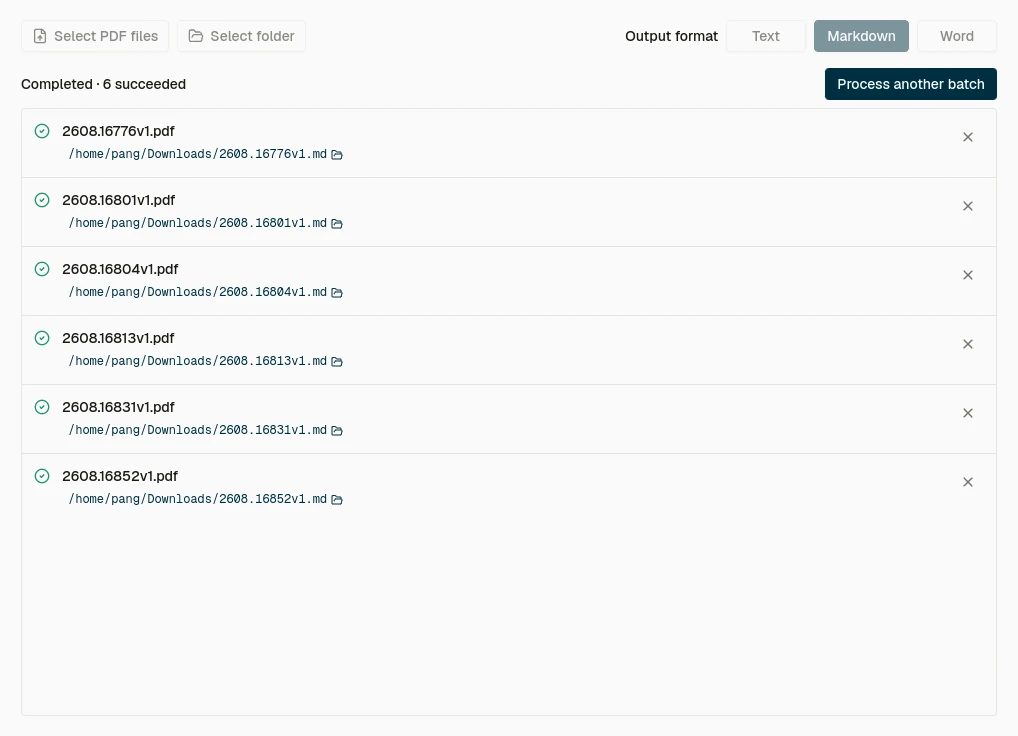
Every completed PDF is saved as a separate .md file with its output path shown in the queue.
EXAMPLE
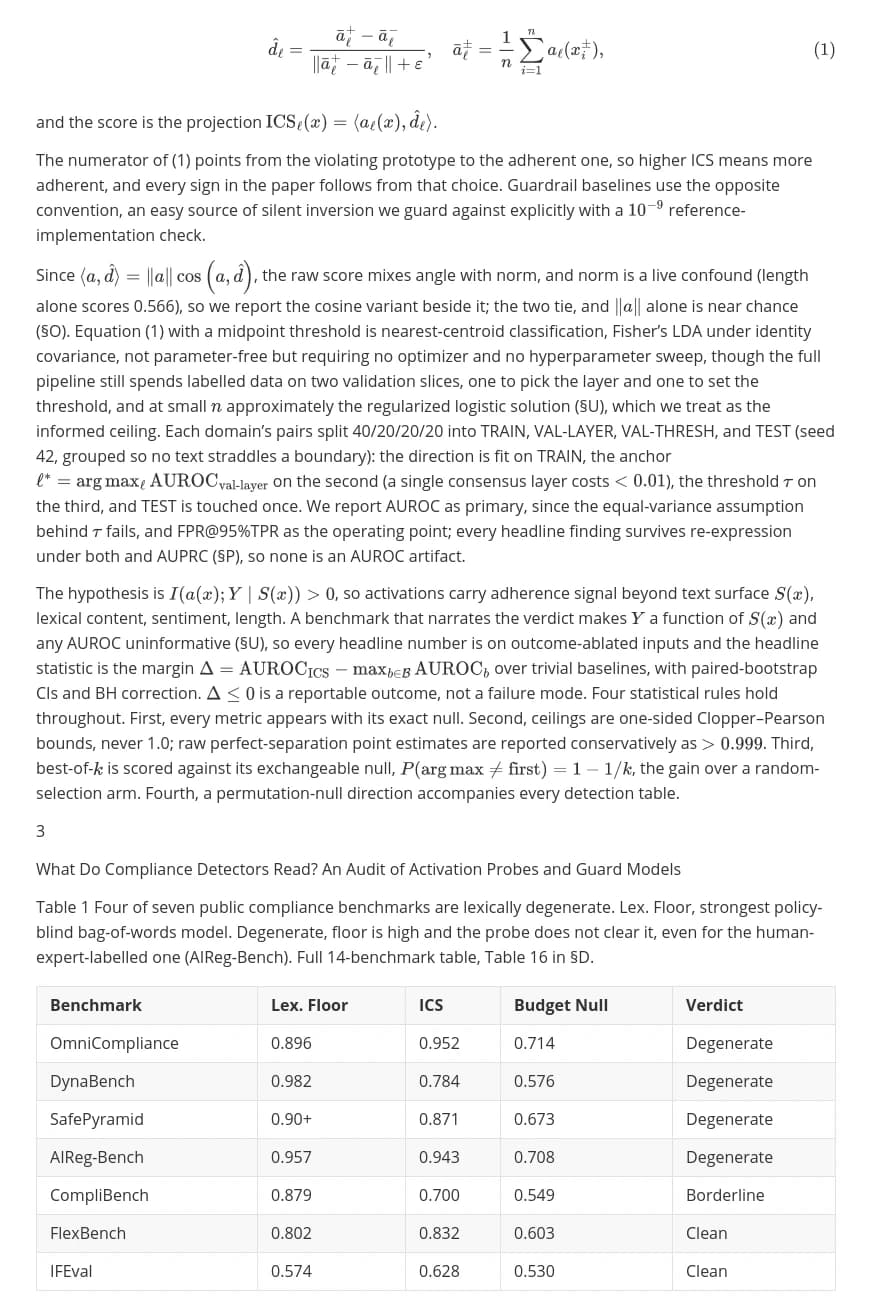
The same research-paper page before and after processing in FreeOCR Desktop.
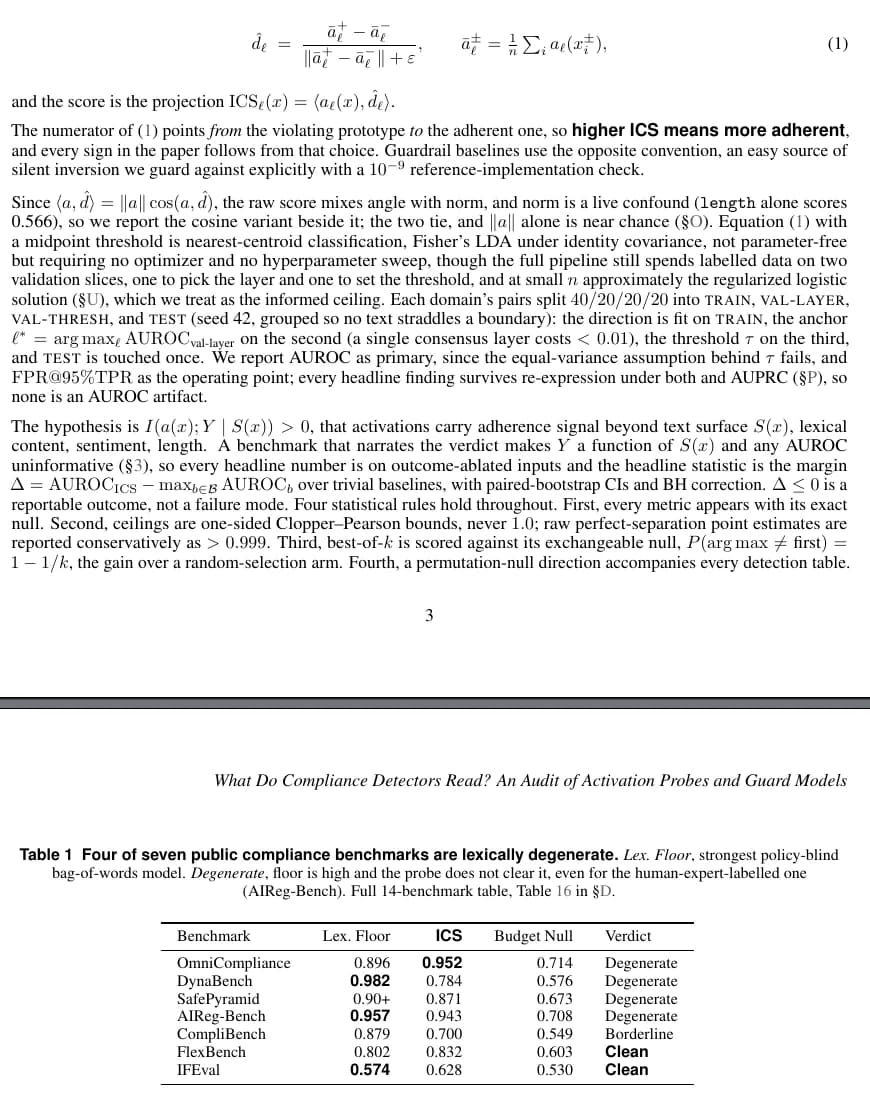
Source PDF page with paragraphs, mathematical formulas and a benchmark table.
Markdown output from the same PDF page with text, formulas and the table preserved.
BATCH
Desktop handles complete documents and repeated conversion jobs without splitting PDFs into screenshots first.
USES
Markdown is useful when the document needs to move beyond a fixed page layout.
LIMITS
PDF conversion is not lossless. Review the Markdown before using it in production or published work.
RELATED
Use Markdown for portable structured text, or choose another FreeOCR workflow when you need a different output.
FAQ
Download FreeOCR Desktop, select one or more PDF files, choose Markdown as the output format, and start OCR. Desktop saves one .md file for each source PDF.
Yes. FreeOCR renders every PDF page and uses AI OCR, so it can read scanned and image-only PDFs that do not contain selectable text.
FreeOCR can represent recognized tables with Markdown table syntax and formulas with Markdown-compatible LaTeX. Results depend on scan quality and should be reviewed.
Yes. Desktop lets you select multiple PDF files or a folder. It queues the documents and saves a separate Markdown file for each PDF.
No. Whole-PDF conversion runs in FreeOCR Desktop, not in the browser. The desktop workflow can process multi-page PDFs and batch multiple files.
PDF conversion runs in FreeOCR Desktop, not in the browser, and uses 1 credit per page. Sign in with the same account and use permanent or subscription credits; no subscription is required. Desktop shows the page count and checks your available credits before processing.
Download FreeOCR Desktop, select your PDFs, and export structured .md files with AI OCR.
1 credit per PDF page · Multiple PDFs and folders supported