What information can receipt OCR extract?
Receipt OCR can extract fields such as merchant, date, subtotal, tax, tip, total and currency. Because fields are free-text, you can also request values like payment method, receipt number or store address.
Solution · Receipt OCR
Use receipt OCR to extract merchant, date, subtotal, tax, tip, total and currency from photographed or scanned receipts. Try one receipt free, process batches in the workspace, or automate with the API.
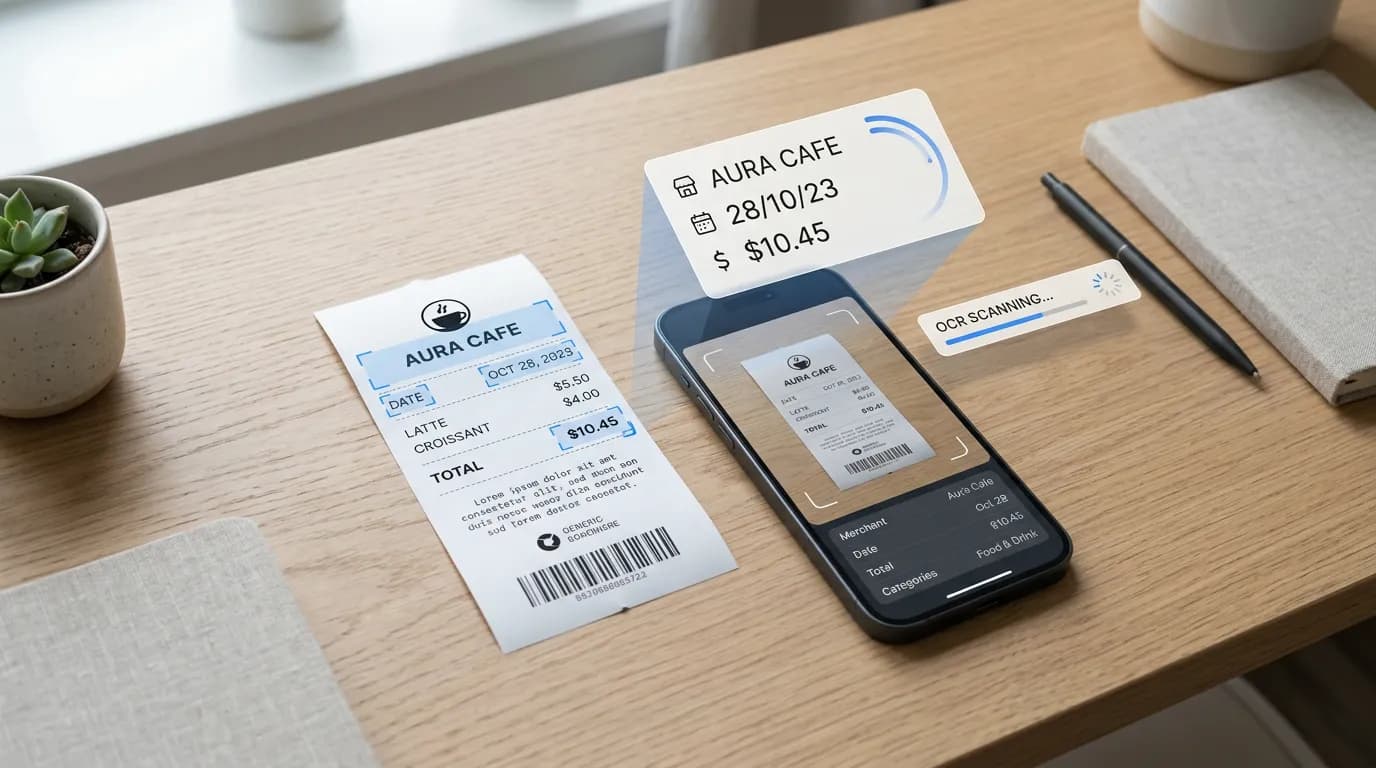
Receipt OCR uses optical character recognition and AI to read a receipt image and return structured data instead of plain text. Instead of retyping merchant, date, totals and tax by hand, you define the fields you need and receive them as keys and values that can be exported to CSV or Excel for expense reports, bookkeeping and reimbursement workflows.
Fields
Define any of these fields in the extraction tool and the AI will return a value for each one. Field names are free-text, so you can adapt them to your expense workflow.
Line items: you can add a field such as "Line Item" and the AI will return multiple values (one per item) in the result. Each value is captured as free-form text rather than separately structured description, quantity and price columns.
Inputs
Receipts rarely arrive as flat, high-resolution scans. The extraction tool is built to handle the kinds of input that show up in real expense workflows.
Example
Sample for illustration only — the image and values below are not from a live extraction.
JPG
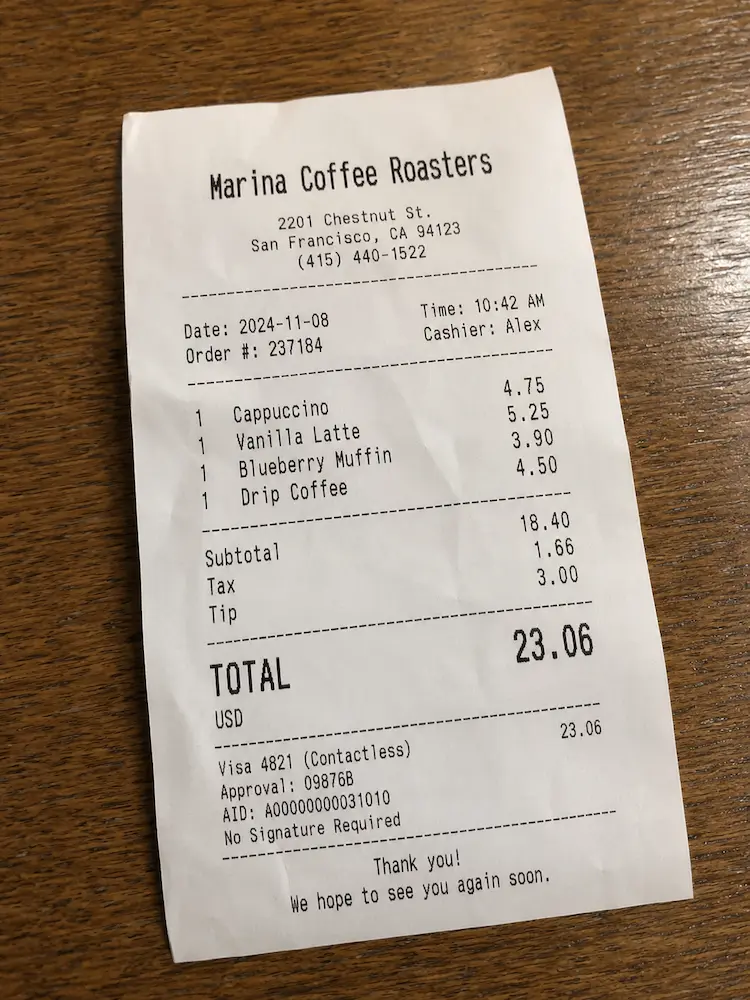
Sample receipt image used as input for receipt OCR
| Field | Extracted Value |
|---|---|
| Merchant | Marina Coffee Roasters |
| Date | 2024-11-08 |
| Subtotal | 18.40 |
| Tax | 1.66 |
| Tip | 3.00 |
| Total | 23.06 |
| Currency | USD |
When you run the extraction, results render in a table like the one above and can be downloaded as CSV or Excel.
JSON
[
  { "key": "Merchant", "values": ["Marina Coffee Roasters"] },
  { "key": "Date", "values": ["2024-11-08"] },
  { "key": "Subtotal", "values": ["18.40"] },
  { "key": "Tax", "values": ["1.66"] },
  { "key": "Tip", "values": ["3.00"] },
  { "key": "Total", "values": ["23.06"] },
  { "key": "Currency", "values": ["USD"] }
]
CSV
"Merchant","Date","Subtotal","Tax","Tip","Total","Currency"
"Marina Coffee Roasters","2024-11-08","18.40","1.66","3.00","23.06","USD"
Three Steps to Extract Receipt Data
Upload a receipt photo or scan
List the fields to extract, such as merchant, date, total, tax and tip
Review the structured results and export to CSV or Excel
Compare
Use the free tool for occasional single receipts, or switch to the workspace when you need to process receipt batches under one field schema.
| Capability | Free (single receipt) | Workspace |
|---|---|---|
| Input | One receipt image at a time | Upload many receipt images in one job |
| Volume | Daily free quota, designed for trying the tool | Batch processing for expense reports and monthly close |
| Field schema | Define fields per session, saved in your browser | One shared schema applied to every receipt in the batch |
| Export | CSV and Excel (XLSX) download | Download a separate CSV or Excel file for each receipt |
| Access | No sign-up required to try | Account required; runs in the workspace |
Use Cases
Receipt OCR is most useful where structured data from many paper receipts is needed in a spreadsheet or downstream system.
Upload many receipt photos and extract merchant, date, subtotal, tax, tip, total and currency in one workflow, using the same field schema for every receipt.
Honest Scope
Receipt OCR reduces manual data entry but is not a fully autonomous accounting system. Treat the output as a draft and have a human review it.
FAQ
Receipt OCR can extract fields such as merchant, date, subtotal, tax, tip, total and currency. Because fields are free-text, you can also request values like payment method, receipt number or store address.
You can add a field such as "Line Item" and the AI will return multiple values, one per line item, from the receipt. Each value is captured as free-form text, so a line like "Coffee 2 x 3.20" is returned as a single string rather than separate description, quantity and price columns.
Yes. After extracting fields from a receipt, you can download the results as a CSV file or an Excel (XLSX) file. You can also copy all rows to the clipboard as tab-separated values to paste into a spreadsheet.
Yes. The extraction tool accepts receipt photos taken on a phone, as well as scanned images. Tilted, low-light and faded thermal receipts are supported, though very low-quality images are more likely to need a human review of the extracted values.
Yes. Single receipts can be processed free in the Extraction tool. To process many receipts in one job under a shared field schema, use the bulk extraction tool in the workspace.
Yes. The FreeOCR API exposes the same extraction engine used by the web tool. You send a receipt image and a list of fields, and receive structured JSON, CSV or XLSX back. See the API page for endpoints, code examples and authentication.
Related
See how custom fields, batch processing, and API automation support recurring receipt and document workflows.
Explore Data Extraction WorkflowsProcess many receipts with one shared field list. Each receipt produces a separate CSV or Excel file, available individually or packaged in a ZIP archive.
Open Bulk ExtractionSend a receipt image and a list of fields, receive structured JSON, CSV or XLSX back. Code examples included.
View API DocsExtract invoice numbers, vendors, dates and totals from invoice images with the same extraction engine.
Read Invoice OCRTry one receipt free in the Extraction tool, process batches in the workspace, or integrate with the Receipt OCR API.
No credit card required to try the free tool.