First, check what is on your page
Ink written in Goodnotes
Select the pen strokes with the Lasso tool and use native text conversion.
Follow the ink method →A photo or scanned page
Capture a readable page image and extract its text with image OCR.
Follow the image method →Convert handwriting with the Lasso tool
Use native conversion for ink you wrote in Goodnotes. A scan, imported page, or photograph contains pixels rather than editable pen strokes. The same Lasso conversion action does not apply to both.
- Open the page and select the Lasso tool. Enable handwriting in its selection settings.
- Circle the words you want to convert, then tap the selection to open the object menu.
- Choose the handwriting-to-text conversion action. It may appear under Convert or the More menu, depending on your version.
- Review the recognized text and copy it. Paste into a text box or document editor if you want typed text.
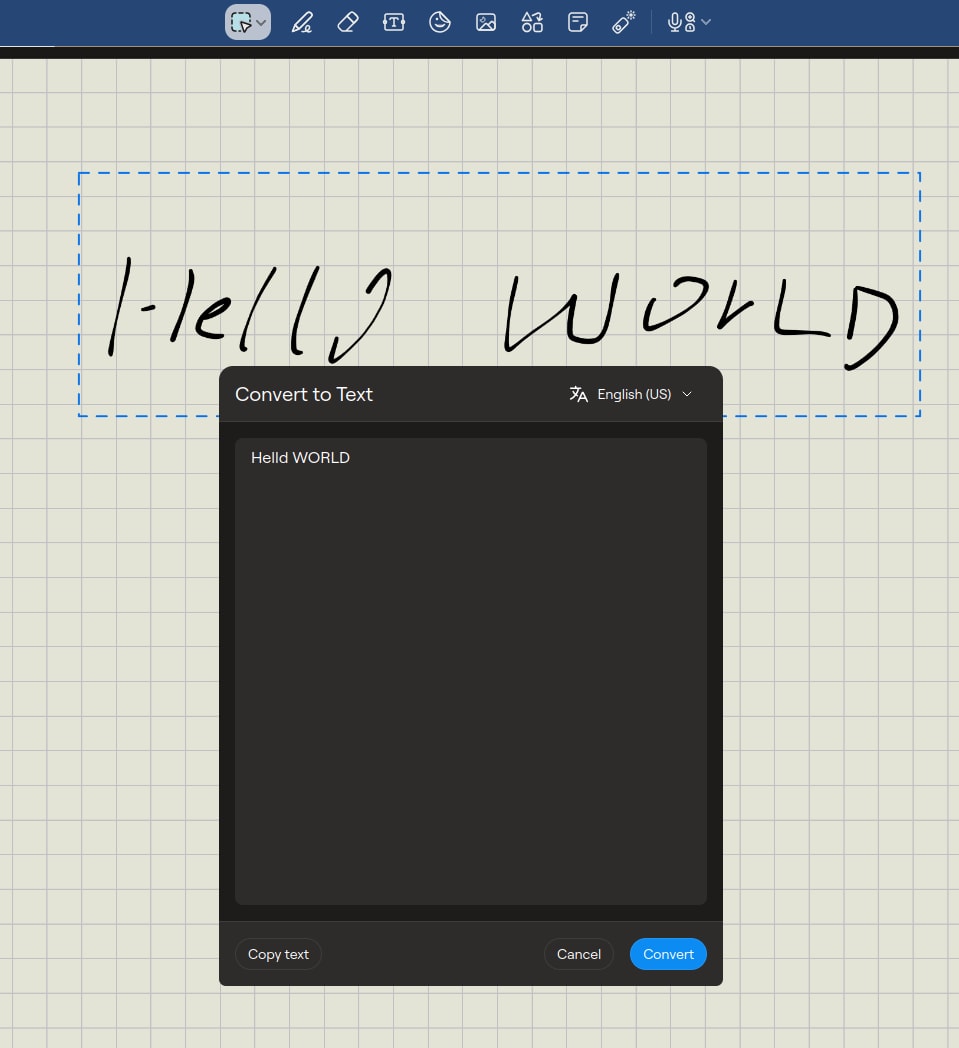
Why the Convert option may be missing
Confirm that the Lasso can select handwriting and that you selected actual ink. Goodnotes cannot edit content already embedded in an imported PDF as if it were a new handwritten annotation. If only screenshot actions appear, check selection settings and the content type.
The native steps above target the iPad app. Other platforms and releases can expose different controls. For a photo or scanned page, continue with the screenshot method below rather than looking for an ink conversion command.
Extract text from a scan or imported page
- Open the page containing the handwritten scan. Zoom until the letters are clear, while keeping the complete paragraph visible.
- Take a screenshot and crop away the app toolbar and blank margins. For a long page, take several readable screenshots instead of one tiny full-page image.
- Process each screenshot with the FreeOCR.AI steps below. Keep the page number or section title with each result so you can combine them in order.
- Do not upload a .goodnotes notebook file to the image tool. It needs the visible page as an image.
- If your source is a PDF, capture the relevant page as an image for this browser workflow. The web image uploader does not accept an entire PDF.
- Check headings and bullet order when combining results. Text extraction does not rebuild a Goodnotes notebook or its editable strokes.
Make an editable document from the page image
The homepage image tool can extract printed text and handwriting from a Goodnotes page screenshot. Capture the relevant area or use an existing page image. Crop to one readable section. For notes stored inside a PDF or .goodnotes file, open the page and capture its visible content instead of uploading the notebook file.
- Open the FreeOCR.AI homepage and upload your page screenshot. The image uploader cannot import a .goodnotes notebook or an entire PDF.
- Complete the verification shown, then submit for recognition. If the free allowance is exhausted, follow the account or credit prompt.
- Compare the result with the scan. Check headings, bullet order, names, and any handwriting next to diagrams. Process additional screenshots separately and keep the page order.
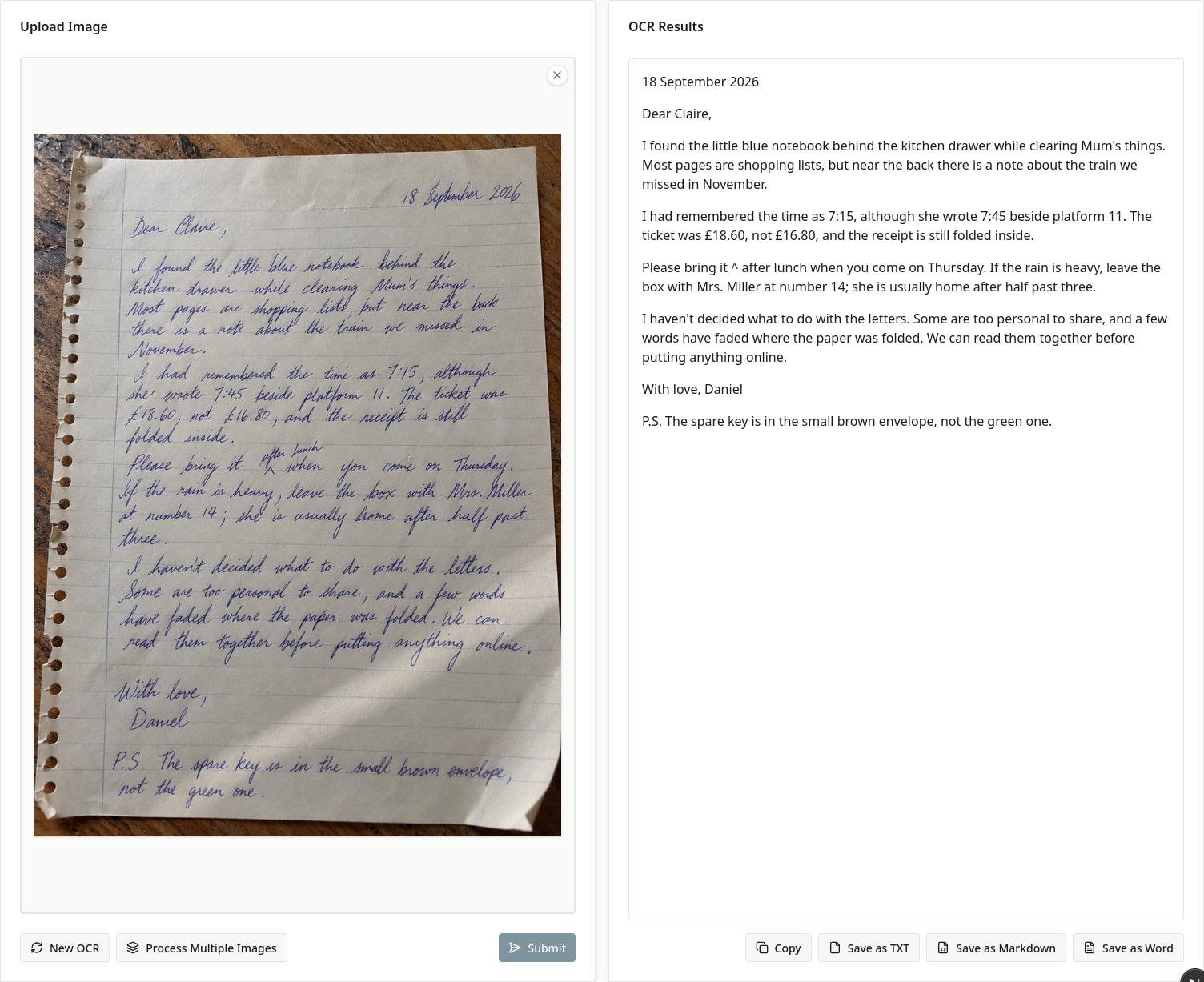
Compare the page image with the FreeOCR.AI result. Check corrections and inserted words before copying the text. - Save as Word for an editable document, or use Copy and paste into a Goodnotes text box. Keep the original page as a reference; the transcription does not preserve editable pen strokes or the exact notebook layout.
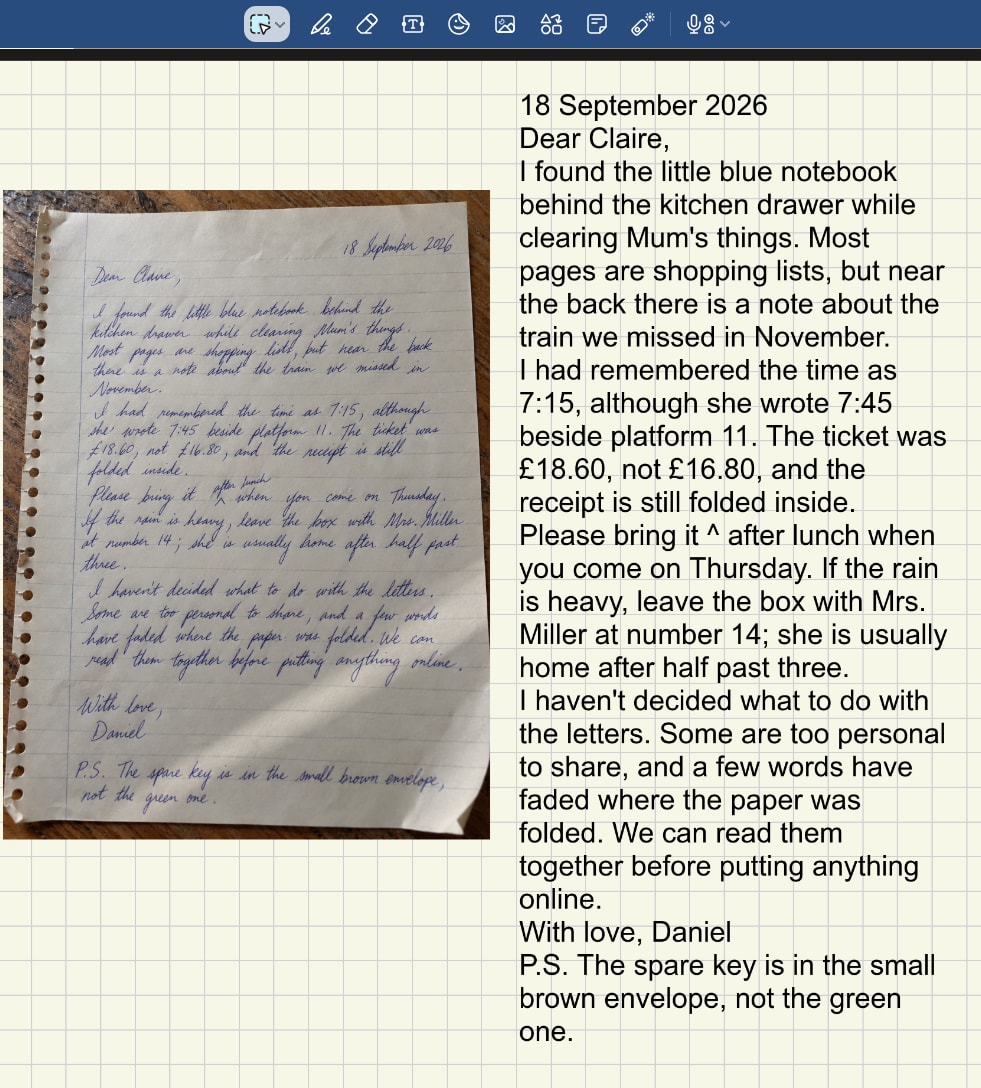
Text extracted with FreeOCR.AI and pasted into a Goodnotes text box beside the original image. Adjust the font size and text box width to fit your page.
Frequently asked questions
Can I convert handwriting in an imported PDF?
New handwriting added in Goodnotes is different from handwriting already flattened into the PDF. Use native conversion for your ink annotations. Capture the scanned content as an image for OCR.
Will a Word download preserve my Goodnotes page exactly?
No. FreeOCR.AI exports recognized content as an editable document; it does not recreate the notebook's exact spacing, stickers, drawings, or editable pen strokes. Check structure and formatting after export.
Can I convert a whole Goodnotes notebook in this workflow?
This tutorial processes individual page images or screenshots. The public image tool handles one image at a time. It does not import or sync an entire Goodnotes notebook.
Official references
Documentation consulted on October 9, 2026. Controls can vary by version, device, and language.