OCR API Python Tutorial: Extract Text from Images
This is a cloud API: your image is sent to FreeOCR.AI for processing. You need Python 3, an internet connection, an API key, and a PNG, JPEG, or WebP image.
What you will build
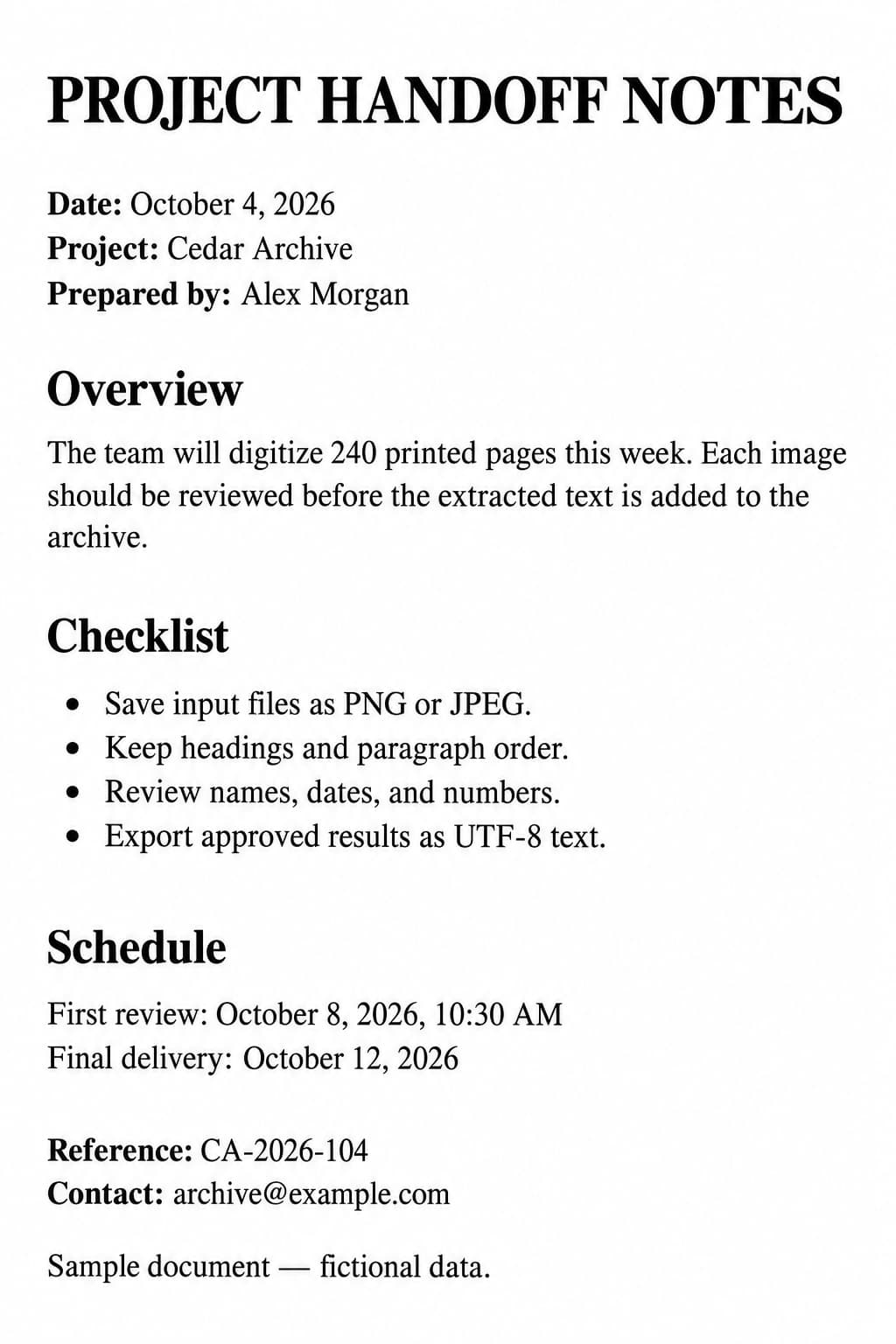
The script reads the image path you pass on the command line, prints the extracted text, and saves it as result.txt. Download the sample document below to follow along. It contains fictional English text with headings, paragraphs, dates, and a checklist.
1. Get your API key
Sign in to the API platform and create an API key. In the Python example below, replace your_api_key with your actual key. Keep the key out of screenshots and public repositories. For production projects, store it in an environment variable or a secret manager.
Open the API platform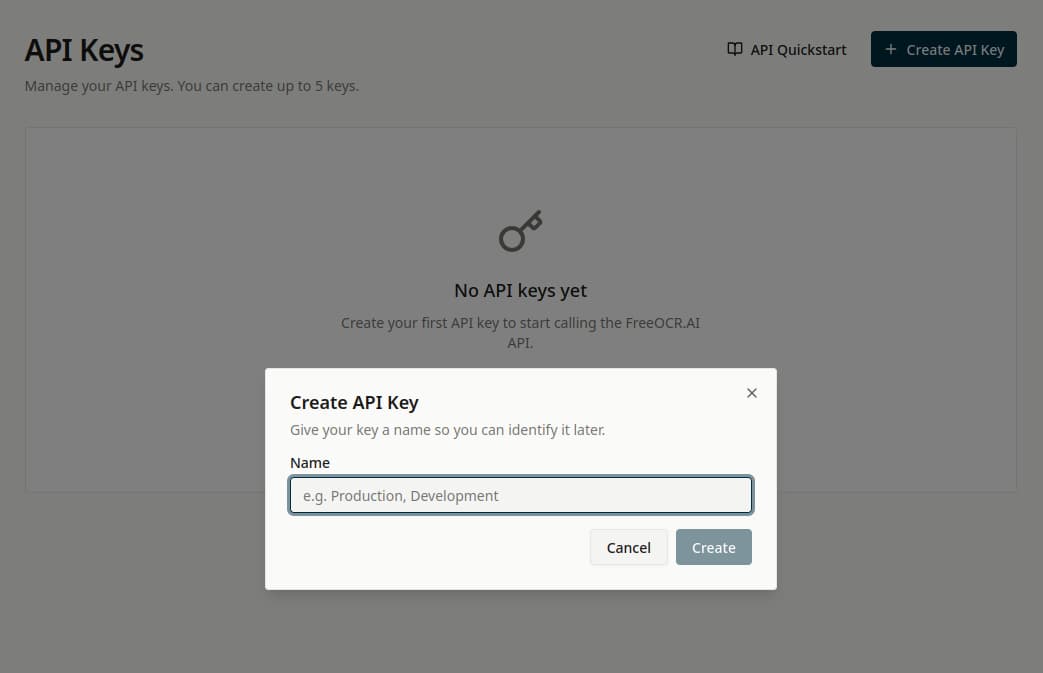
2. Install the Python dependency
Install requests, then download the sample image or choose your own image. You can use any filename. The command below installs the library for the Python interpreter you are using.
python -m pip install requests3. Extract text from an image
Save this code as ocr_example.py. Replace your_api_key with your API key, and pass your own image path as the first command-line argument. The script uploads one image, checks for API errors, and writes the returned text to result.txt in your current directory.
The API returns Markdown-formatted text by default. You can also request plain text for TXT or a Word document (DOCX). This example uses format=text to save the result as TXT.
import sys
from pathlib import Path

import requests

api_key = "your_api_key"

if len(sys.argv) != 2:
    raise SystemExit("Usage: python ocr_example.py <image_path>")

image_path = Path(sys.argv[1])
if not image_path.is_file():
    raise SystemExit(f"Image not found: {image_path}")

try:
    with image_path.open("rb") as image_file:
        response = requests.post(
            "https://freeocr.ai/api/v1/platform/ocr",
            headers={"Authorization": f"Bearer {api_key}"},
            params={"format": "text"},
            files={"image": image_file},
            timeout=120,
        )
except requests.RequestException as error:
    raise SystemExit(f"Request failed: {error}") from error

if not response.ok:
    raise SystemExit(
        f"API error {response.status_code}: {response.text}"
    )

text = response.json()["text"]
Path("result.txt").write_text(text, encoding="utf-8")
print(text)
print("\nSaved extracted text to result.txt")
Run the script, replacing path/to/your_image.webp with the actual path to your image:
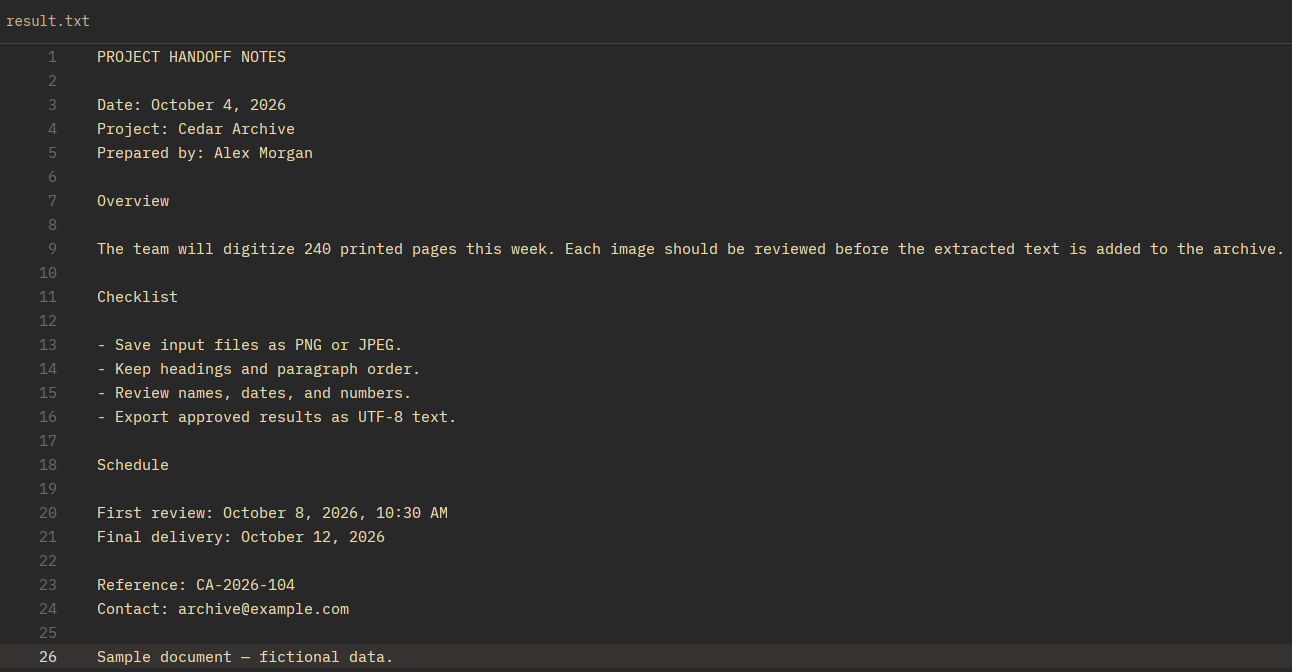
python ocr_example.py path/to/your_image.webpOn success, the script prints the extracted text and saves result.txt. Open the file and compare it against your image before using the result elsewhere.
4. Understand the request and response
POST /api/v1/platform/ocr accepts a multipart image field. The Authorization header carries your API key as a Bearer token. The format=text query parameter requests plain text.
Do not set the multipart Content-Type header yourself: requests supplies the boundary when you use files.
A successful text request returns JSON with a text field. The response has the following structure:
{"text": "Extracted text appears here."}5. Choose Markdown, TXT, or Word output
The default output is Markdown. Remove params={"format": "text"} from the request and change the output filename to result.md. The response still uses the text field.
Path("result.md").write_text(text, encoding="utf-8")For TXT, use format=text and save the returned text as a .txt file, as shown in this tutorial. For Word, use format=docx. This returns a DOCX file rather than JSON: save response.content to result.docx instead of calling response.json().
Markdown can represent headings, lists, and tables. Review the extracted content against the original; formatting and recognition depend on the input.
6. Handle common API errors
| HTTP status | Meaning | What to check |
|---|---|---|
| 400 | Bad request | Include the file in the image field. |
| 401 | Invalid or missing API key | Check api_key and the Authorization header. |
| 402 | Insufficient balance | Top up your API balance in the platform. |
| 429 | Rate limit exceeded | Slow down requests and retry later. |
| 500 | Processing failed | Retry later; contact support if it persists. |
If a request times out, check platform usage before sending it again. A client timeout does not necessarily mean server processing stopped.
How much does the OCR API cost?
The OCR API costs $1 per 500 successful calls ($0.002 per call). There is no subscription, the balance never expires, and the minimum top-up is $5.
New accounts receive $0.01 in API credit, enough for 5 successful calls. Failed API requests are not billed.
View current pricing and API documentationFrequently asked questions
Can I use this Python example with screenshots?
Yes. Save the screenshot as a PNG, JPEG, or WebP file and use its path in the script.
Do I need to install an OCR engine locally?
No. This example calls a hosted API. You need Python, requests, and an internet connection.
Can I upload a PDF?
The REST API accepts images, not PDF files. To use this script with a PDF, first render the pages as supported image files.
Can I extract tables or specific fields?
There are separate table and structured data extraction endpoints. See the API documentation for their input fields and output formats.
Try the OCR API with your own image
Create an API key, run the example, and compare the extracted text with your original image. Explore the API documentation when you need Markdown, DOCX, table extraction, or specific fields.