For a short image containing ordinary text, start with Google Keep's Grab image text. If handwriting is missed, or you need editable formulas and structured tables, try FreeOCR.AI. This guide shows how to extract the text in Keep first, then handle content that needs more than a plain note.
Use Google Keep's Grab image text
Use this workflow for a receipt, printed note, or other clear image when you only need the words in your Keep note.
- Take a clear photo with the whole text visible. Keep the page flat and avoid shadows or glare.
- In Keep, create an image note or add the photo to an existing note. On a computer, use New note with image at keep.google.com.
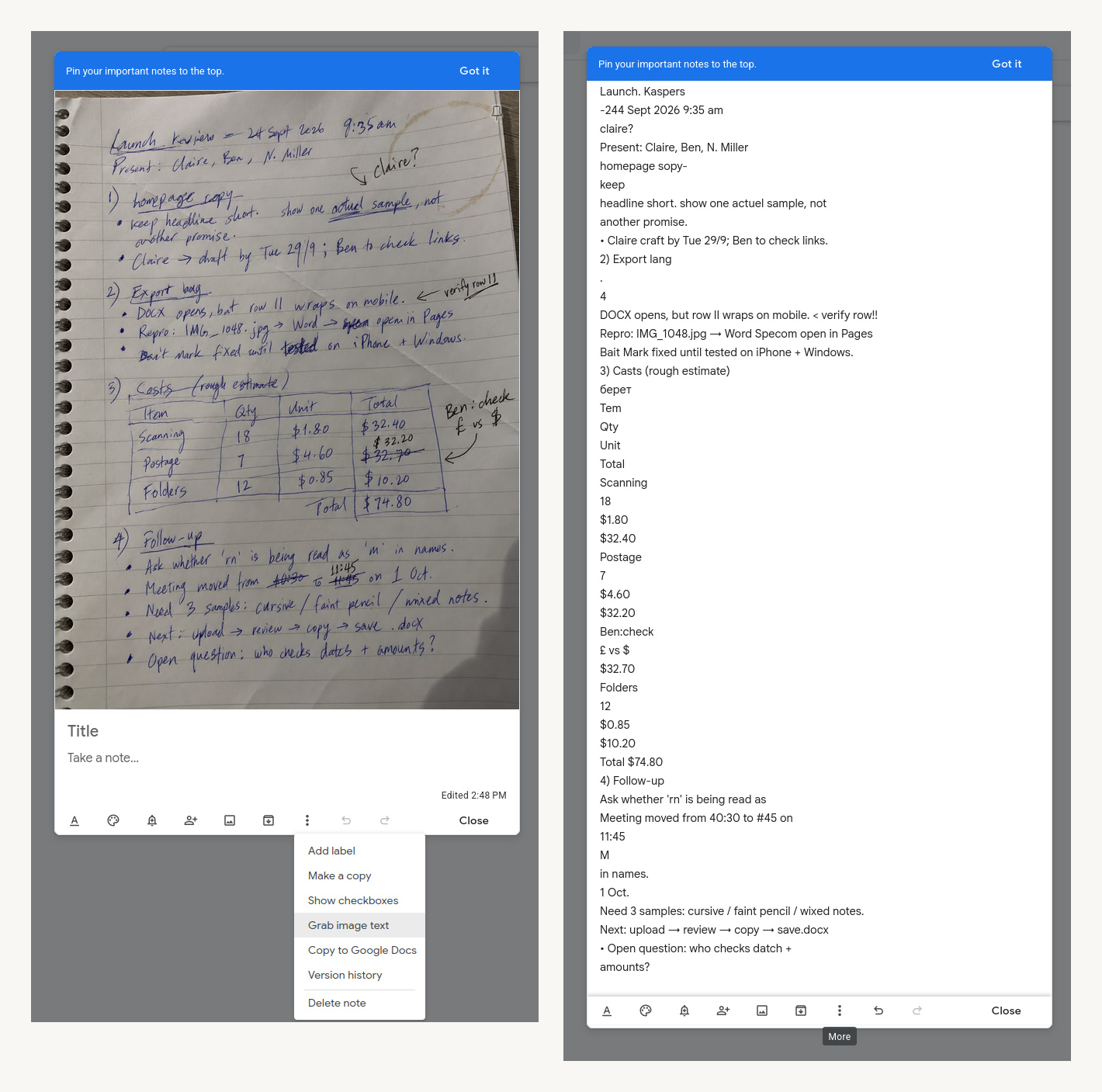
- Open the attached image or the note's More menu and choose Grab image text. The menu location can vary between the mobile app and website.
- Compare the inserted text with the photo. Correct names, numbers, and missing lines before copying or editing the note.
When Google Keep is not enough
Handwriting that comes out incomplete
Keep can recognize some handwriting, but joined letters, cramped notes, or faint writing can lead to missed words. If its result needs extensive correction, try FreeOCR.AI with a clear photo. Compare both results with the original; another OCR tool still needs a readable image.
Formulas that need mathematical structure
Extracting characters into a Keep note is not the same as converting an equation into LaTeX. Fractions, exponents, and subscripts need their relationships preserved. FreeOCR.AI supports LaTeX output for formulas, which you can review and reuse in a compatible editor.
Tables that need rows and columns
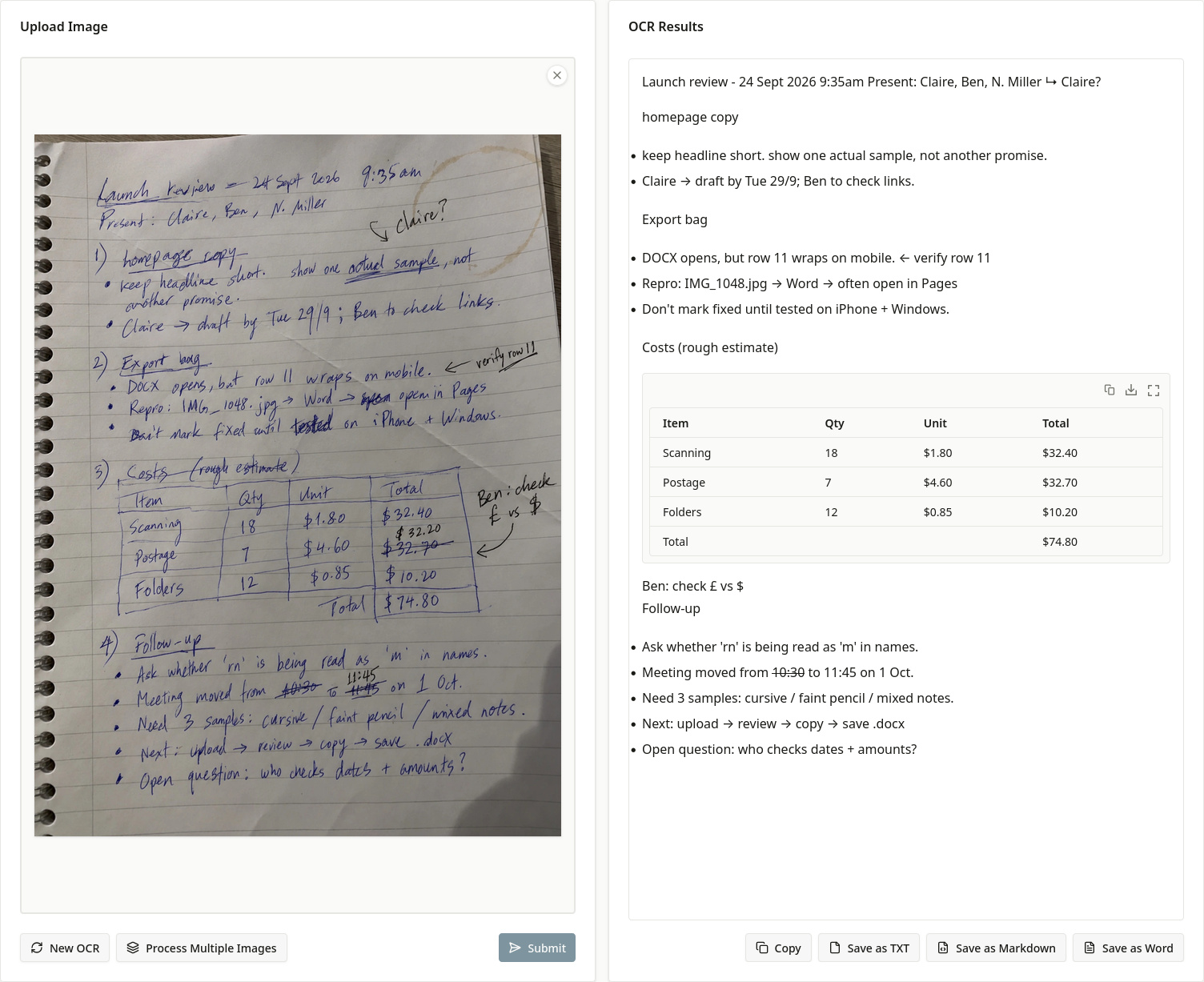
Even if Keep extracts the words in a table, a text note does not give you an editable grid of cells. FreeOCR.AI supports HTML table output to represent rows and columns. Use it when the position of each value matters, rather than just the words on the page.
If you cannot find Grab image text at all, first check that the note contains an uploaded image and inspect the same synced note on Keep's website. If the option is still unavailable, use the image directly in FreeOCR.AI.
Extract handwriting, formulas, or tables with FreeOCR.AI
Use the original photo where possible. If the image or drawing is only available in Keep, open it at a readable size, take a screenshot, and crop out the app controls. Include complete words, formulas, and table edges.
- Open the FreeOCR.AI homepage and upload the photo or cropped screenshot. On a computer, you can also drop or paste an image.
- Complete the verification shown and submit the image. Follow any account or credit prompt if your daily free allowance has run out.
- Compare the result with the image. Check handwritten names and numbers, formula signs and exponents, and which row and column each table value belongs to. Correct any mistakes before reusing the output.
- For an ordinary note, copy the reviewed text back into Keep. For formulas or tables, save Markdown to retain the LaTeX notation and HTML table markup, or choose Word for an editable document. TXT is suitable when you only need plain text.
Choose where to use the result
Paste ordinary text back into Keep for a quick note. Keep is not a LaTeX or HTML editor, so pasting formula notation or table markup there will not turn it into a rendered equation or an editable grid. Use an editor that supports those formats when you need to retain their structure.
The homepage OCR result can be downloaded as Word, TXT, or Markdown. If you need Excel or CSV instead, use the dedicated Table OCR tool with the original image and review the extracted cells before downloading.
Frequently asked questions
Can Google Keep recognize cursive handwriting?
Keep can recognize some handwriting, but difficult cursive or unclear photos may produce missing or incorrect words. If the result is unusable, try the same clear image in FreeOCR.AI and compare the output with the original.
Why can I find a handwritten note but not copy its text?
Search can find content in an image without adding editable text to the note body. Use Grab image text, or recognize an image with FreeOCR.AI and paste the output into the note.
Does FreeOCR.AI connect to my Google Keep account?
No. You choose an image or screenshot to upload and manually copy the result back into Keep. FreeOCR.AI does not sync your Keep notebook.
Official references
Documentation consulted on October 9, 2026. Controls can vary by version, device, and language.