Turn your OneNote handwriting into editable text
Open your note in OneNote for the web, capture a readable screenshot, extract the text with FreeOCR.AI, and paste the reviewed result into your note. The same image workflow works with screenshots from the desktop or mobile apps. If you wrote directly in OneNote with a pen, the Windows app also offers Ink to Text.
Prepare a screenshot in OneNote for the web
- Open your notebook in OneNote for the web and navigate to the page containing your handwriting. For this example, insert a photo of handwritten meeting notes using Insert > Picture. Adjust the image size or zoom until the text is easy to read.
- Use your computer's screenshot tool to capture the handwritten paragraph. On Windows, press Windows + Shift + S; on Mac, press Shift + Command + 4 and select the area.
- Crop out notebook navigation, toolbars, and unrelated content. Leave a little space around the first and last line.
- Save the image, then follow the FreeOCR.AI browser steps below. For a long note, repeat with the next paragraph and keep the sections in order.
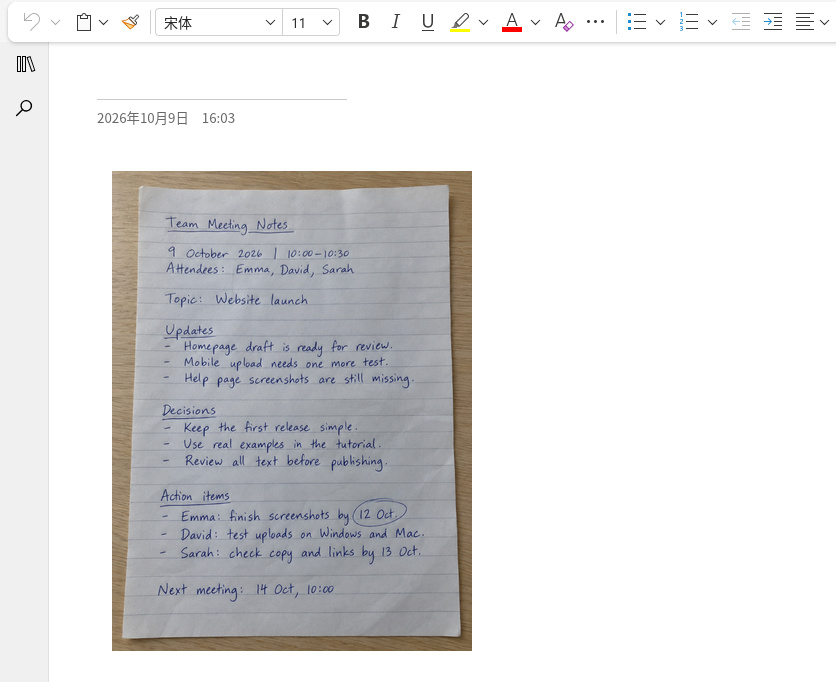
Extract text from the screenshot with FreeOCR.AI
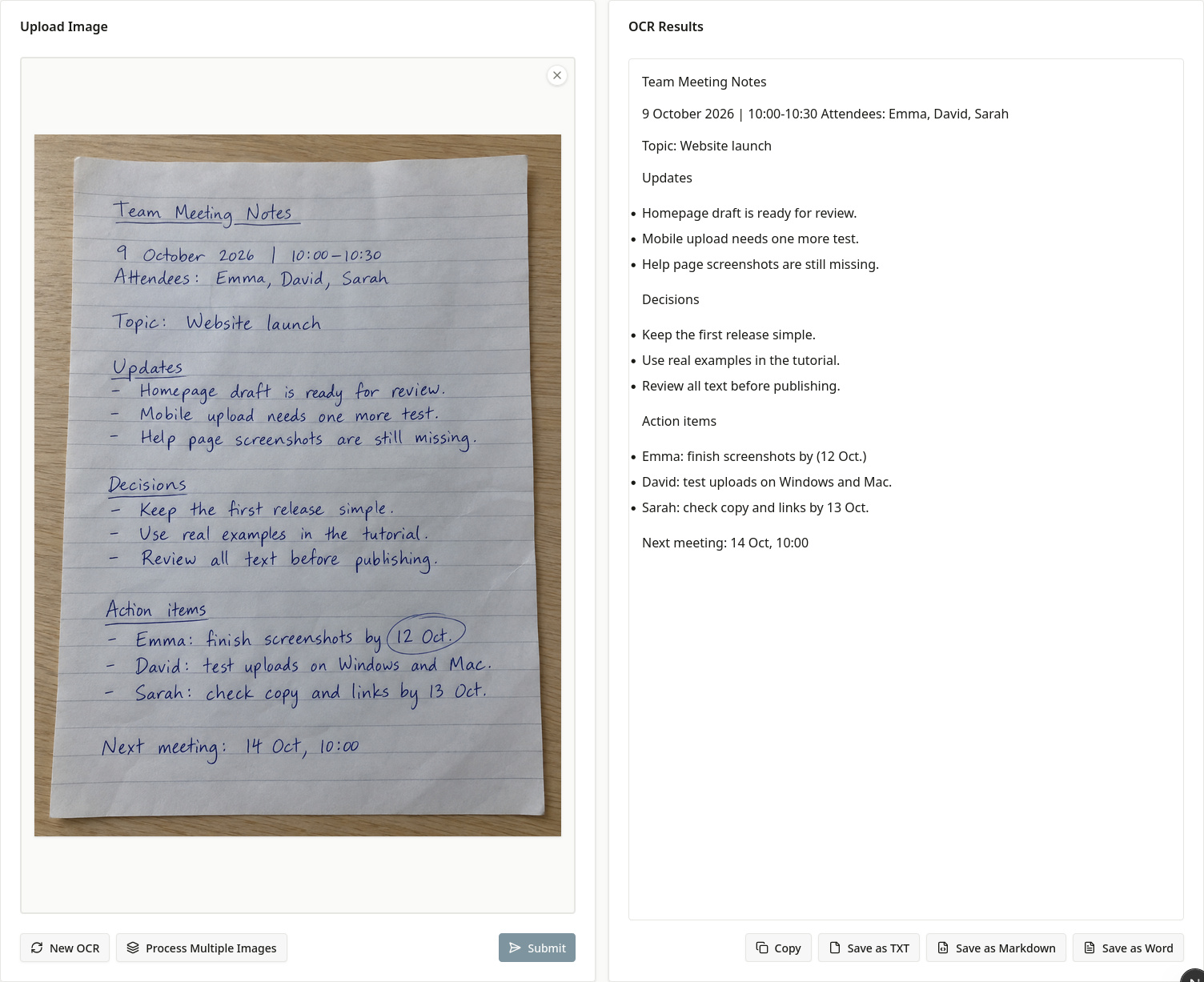
This screenshot workflow also works for printed text or mixed notes stored in OneNote. Use a cropped screenshot of a readable paragraph. For a paper note stored as a photo in OneNote, use the original photo if available. A notebook link or .one file cannot be submitted to the image uploader.
- Open the FreeOCR.AI homepage in another browser tab. Choose the cropped OneNote screenshot from your computer and upload it.
- Complete any verification, then submit the image. Wait for the result. If today’s free allowance is exhausted, follow the account or credit prompt.
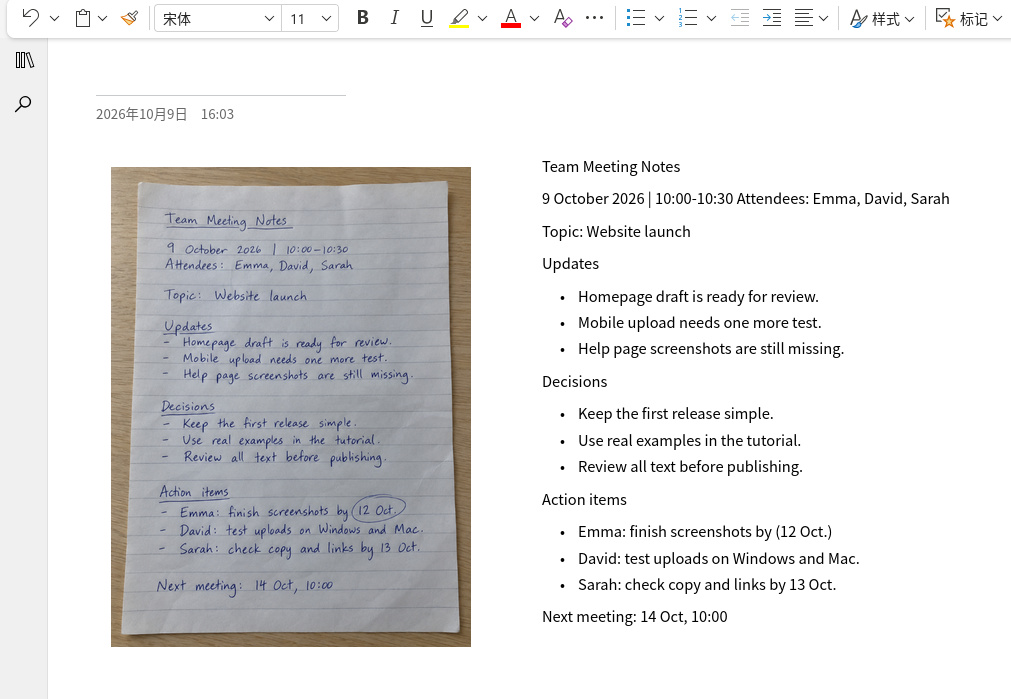
- Compare the recognized text with your OneNote screenshot. Use Copy, return to the OneNote browser tab, click beside or below the original handwriting to place the text cursor, and paste the result.
- Correct names, dates, and action owners in OneNote. If clipboard access fails, save the TXT result and copy from that file. Word and Markdown downloads are also available.
Can OneNote for the web convert handwriting to text?
OneNote for the web does not offer the Windows Ink to Text command. You can view your synced handwriting in the browser, then use a screenshot to extract editable text with FreeOCR.AI.
For this workflow, you need a readable screenshot or photo and an internet connection. You can complete the steps in your browser, then paste the reviewed text back into OneNote.
Keep the transcript next to the original note
Put the recognized text beside or below your handwriting, or on a separate page with the same title. This keeps the original diagram and pen marks available while giving you words that you can edit and copy.
For meeting notes, verify the people, dates, and action owners before sharing. If a paragraph contains a diagram, describe it separately instead of treating nearby OCR text as a reconstruction of the drawing.
Frequently asked questions
Can I use Ink to Text in OneNote for the web?
No. Microsoft documents Ink to Text for the Windows desktop app and states that it is unavailable in OneNote for the web. In your browser, use a screenshot or photo with the OCR workflow above.
Can Windows Ink to Text convert a photo of handwriting?
Ink to Text operates on pen strokes. A photo contains image pixels, so selecting it does not select handwritten ink. Use the photo or a screenshot as input to an image OCR tool instead.
Will FreeOCR.AI change my OneNote notebook?
No. It recognizes the image you upload and returns text. You manually paste that text into OneNote; no notebook connection or automatic sync is involved.
Official references
Documentation consulted on October 9, 2026. Controls can vary by version, device, and language.