Now supports exporting OCR result as Word
Why choose Word format?
Word format provides numerous advantages for users:
Preserves formatting
Word documents retain text formatting, styles, and layout, making your OCR results look professional
Easy to edit
Open and edit directly in popular word processors like Microsoft Word, Google Docs, and more
Universal compatibility
Word is an industry-standard format supported by virtually all office software
Simple sharing
Share easily with colleagues and clients without worrying about compatibility issues
Ready for further processing
Continue adding content, modifying formats, or inserting images after download
How to use it
Upload your image to FreeOCR.AI

Click the Extract Text button
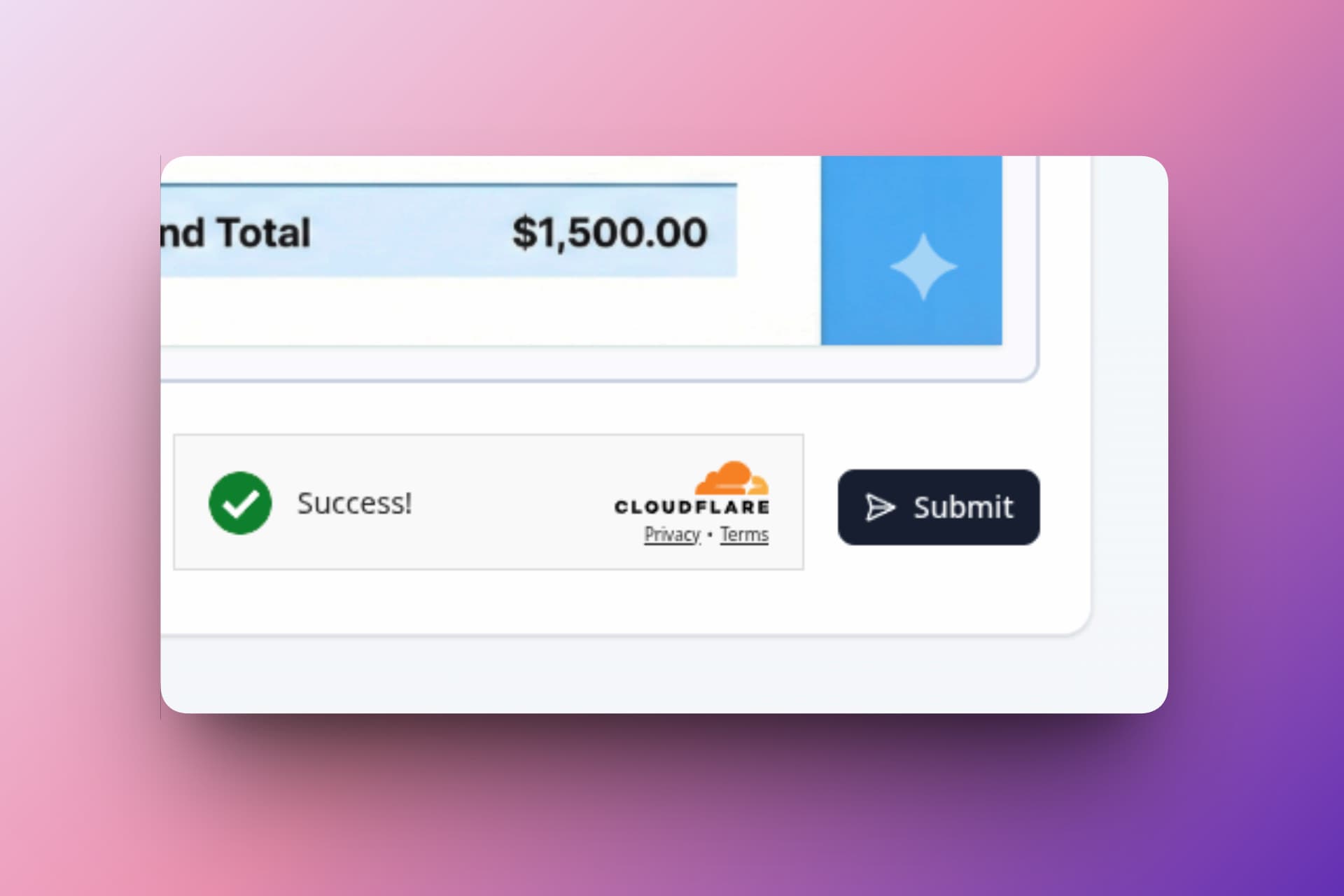
Download your Word file
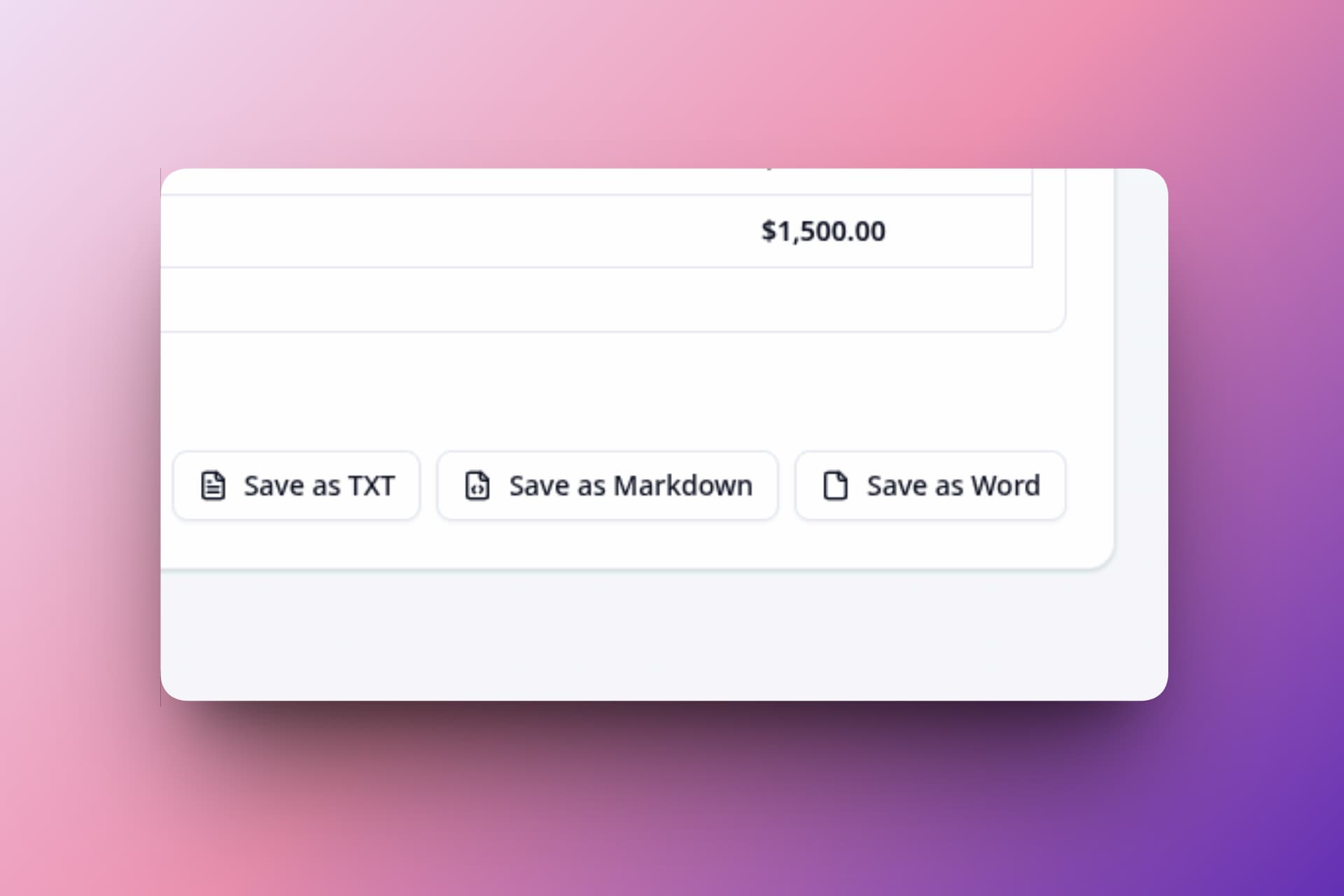
Once the OCR is complete, look for the Save as Word button in the bottom right corner of the results. Click the button to download your Word file.
Thank you for your continued support
We truly and deeply appreciate each and every one of you for choosing to use FreeOCR.AI for your OCR needs. Your trust in our service means the world to us.
If you have any suggestions, feature requests, or feedback of any kind that you'd like to share with us, please don't hesitate to reach out and let us know — we are committed to listening to our users and will do our absolute best to make your ideas and requests a reality!
Experience the new Word export feature at https://freeocr.ai today!
Leer más Blogs